
The pager goes. You're already moving: keys, boots, out of the door. Somewhere in there you're meant to let the station know whether you're coming, and that has always meant the same routine: unlock the phone, open the app, find your status, tap responding. It only takes a few seconds, but they're seconds you'd rather spend getting there.
So in the next app update we've cut it down to one tap. You can answer a callout straight from the notification, without opening the app, with one of three answers:
- I'm responding
- Responding but delayed
- I'm not responding
The last one matters as much as the first. Knowing who isn't coming means the officer in charge isn't left waiting for an answer that will never arrive.
On iPhone: right on the callout
The callout notification itself carries the three buttons. Press and hold the notification (or swipe it to the left and tap View) and they appear underneath. Tap one and you're done.
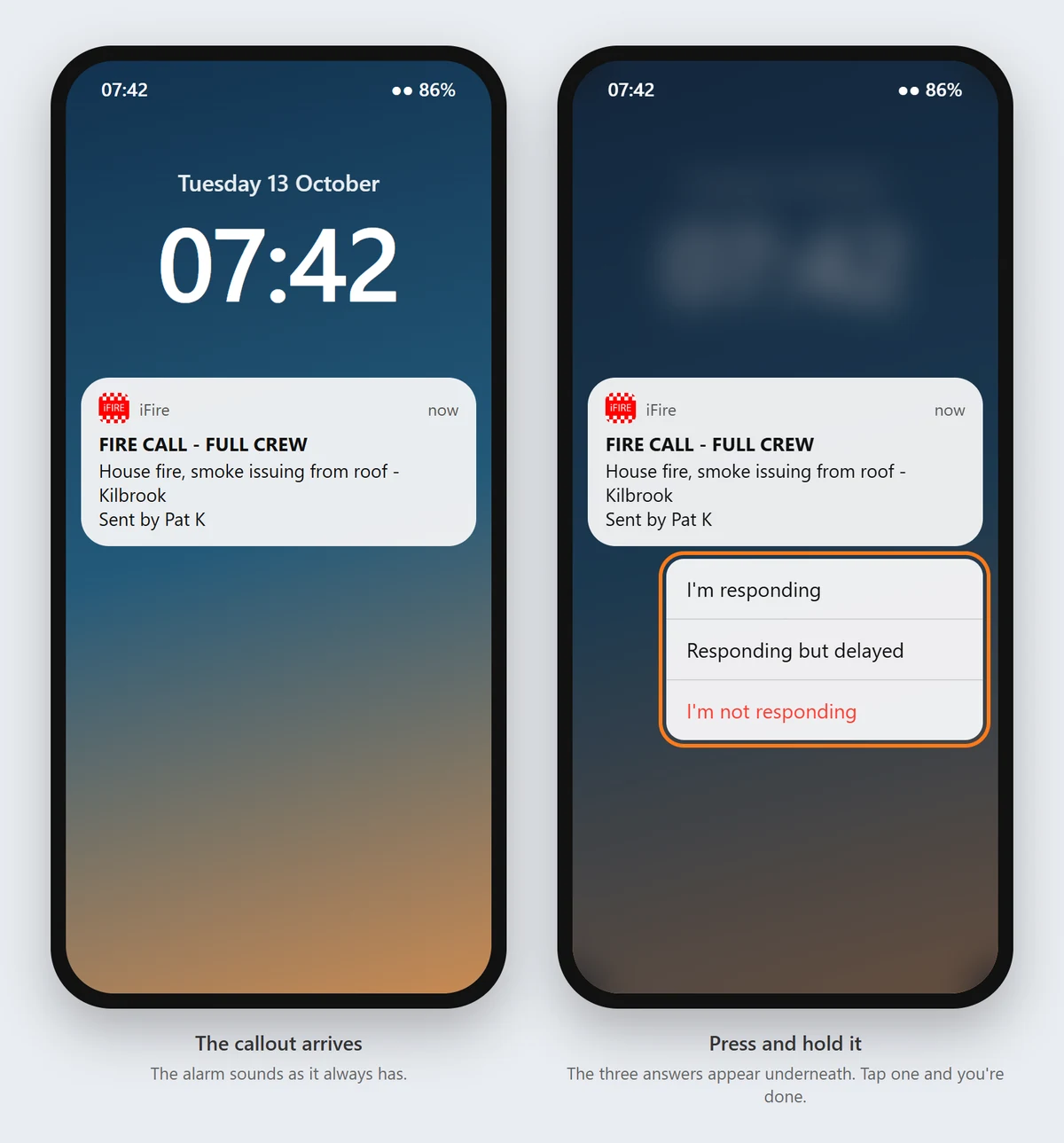
If your phone is locked, it asks for Face ID or your passcode first. That's deliberate: nobody who picks up your phone can answer for you.
On Android: just below the callout
On Android, the callout itself hasn't changed at all. It still sounds the alarm exactly as it always has, even with your phone on silent. Directly beneath it you'll see a second notification, "Callout: tap to respond", with the three buttons. You can tap them straight from your notifications or the lock screen.
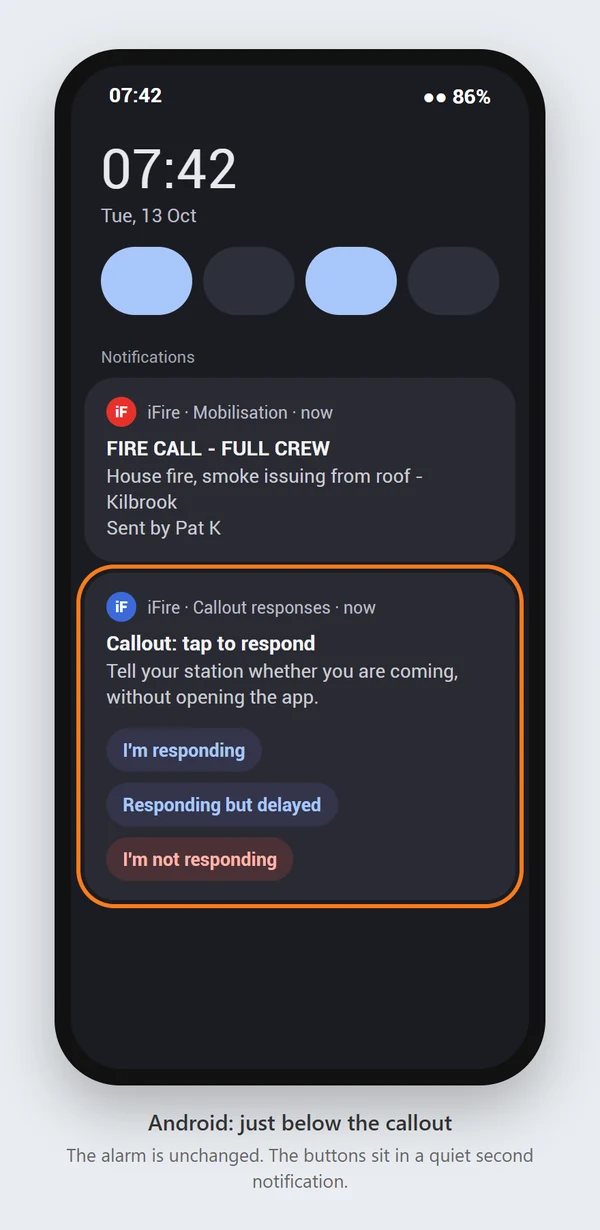
That second notification is deliberately quiet: no extra sound and no buzz. The alarm is the thing that needs your attention; the buttons wait underneath until you're ready for them. It tidies itself away after an hour.
You'll know it worked
As soon as you tap, the app confirms it. For example: "You're marked as responding. Your station can see you are on your way." Everyone watching the crew list, the Station Dashboard or the crew-room Crew board sees your answer straight away, just as if you'd set it in the app.
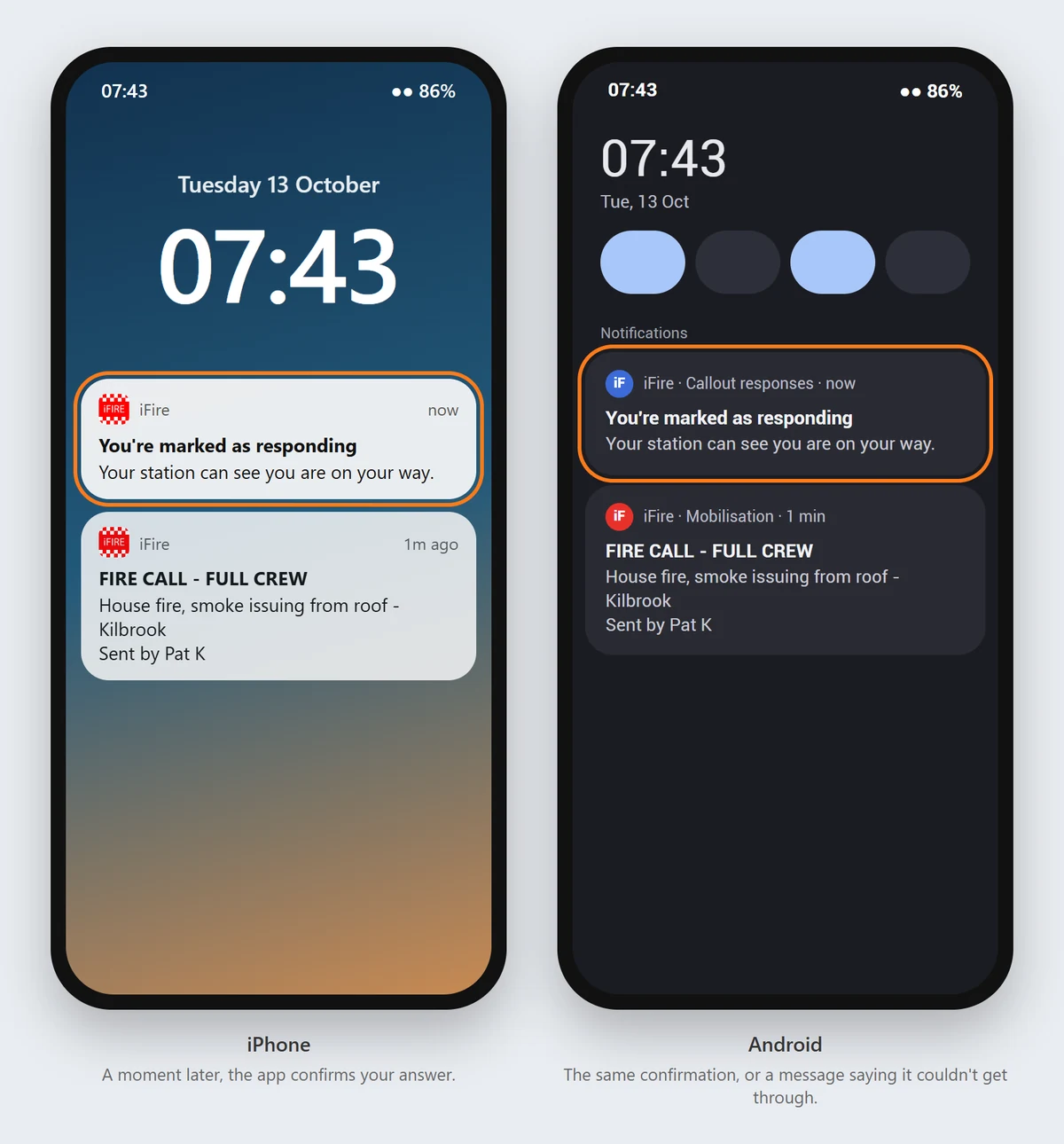
If it can't get through, with no signal say, it tells you that too, so you're never left guessing: "Couldn't set you as responding. Open the app to set your status."
The right station, every time
Plenty of crews cover more than one station. Your answer always goes to the station the callout came from, even if the app was last showing a different one. So you won't turn up as responding at the wrong station.
Every answer is on the record
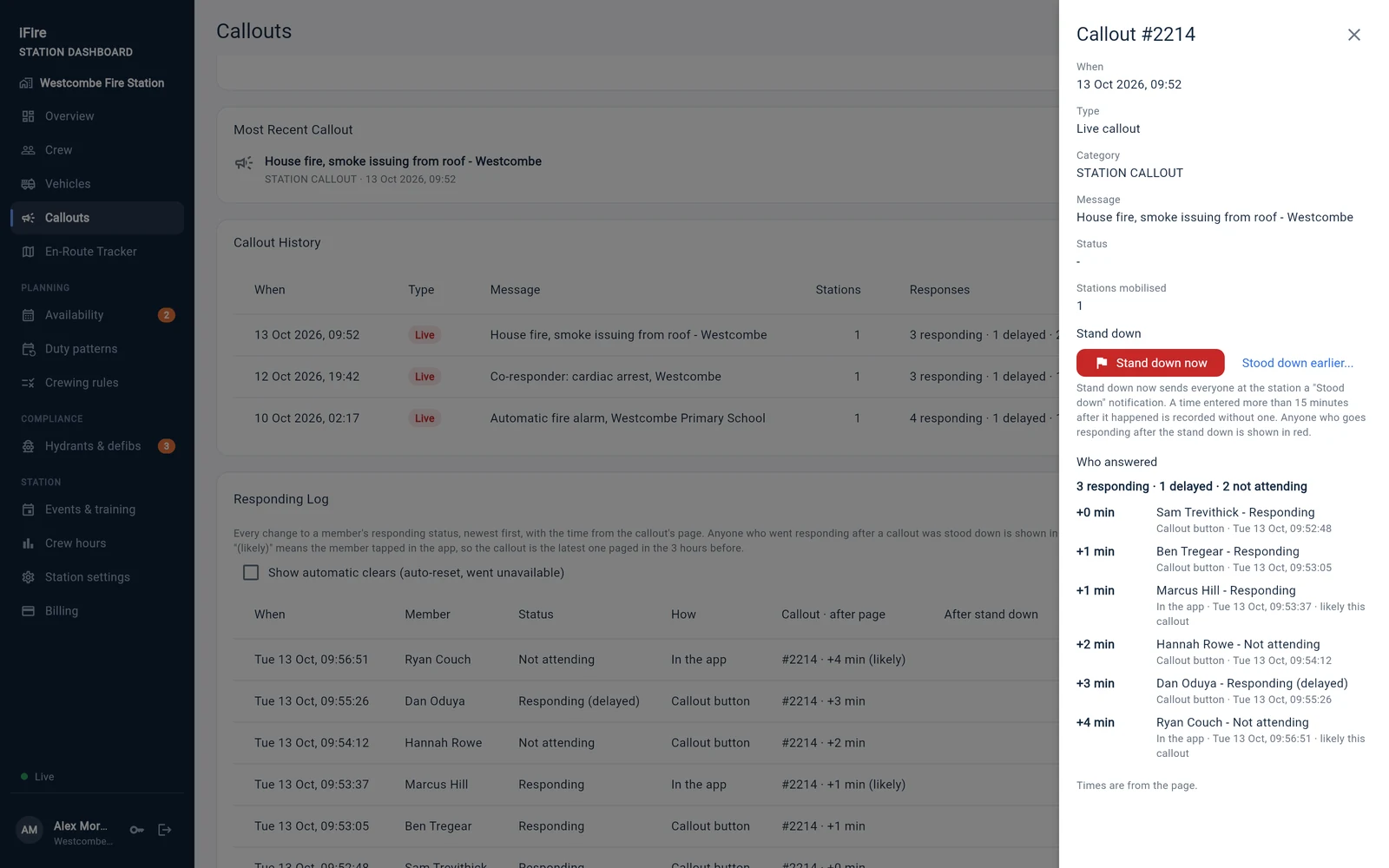
Answers from the notification go into your station's responding log on the Station Dashboard, with the time, the same as answers given in the app. If the callout is stood down, the log shows that too, along with anyone who answered after it.
Try it first
A test alert carries the same buttons, so you can see how it works on your own phone before a real callout. Pressing them on a test changes nothing at your station.
In the car
If you're already driving, there's a hands-free way too. On iPhone, say "Hey Siri, iFire I'm responding" (or iCrew, or iRescue); it works over CarPlay. On Android, the app can notice your phone connecting to your car's Bluetooth soon after a callout, and either offer you the buttons or mark you as responding by itself. You choose which in Settings > Notifications settings > In the car.
A couple of things worth knowing
- Your position on the live map starts when you open the app. If your station watches crew on the en-route map, open the app when it's safe to, and your position will appear.
- iRescue teams that report to Alerting & Tasking still send that text from inside the app, as now.
- On scene is still set in the app. The buttons are for the answer that matters in the first few seconds.
Getting it
The buttons come in the next update of iFire, iCrew and iRescue, for iPhone and Android. There's nothing to switch on: once you've updated, they're there on your next callout. Like callouts themselves, answering is never locked, whatever your station's subscription.
Got thoughts on it, or something you'd like to see next? Get in touch. Most of what we build starts with a crew telling us what would make their callouts easier.
Screenshots show a made-up station. The phone screens are illustrations of how the notifications look.