It's the small thing that's easy to forget. You get back into the area after a day away — but your status still says you're unavailable. Or you head off for the weekend and only remember halfway down the road that you never booked yourself off. Keeping your availability current is one more thing to remember, on top of everything else going on.
So we've taught the app to give you a hand. Geofencing watches the edge of your station area for you, and prompts you to update your availability as you arrive and leave — no need to remember, and no status left sitting there out of date.
Two rings around your station
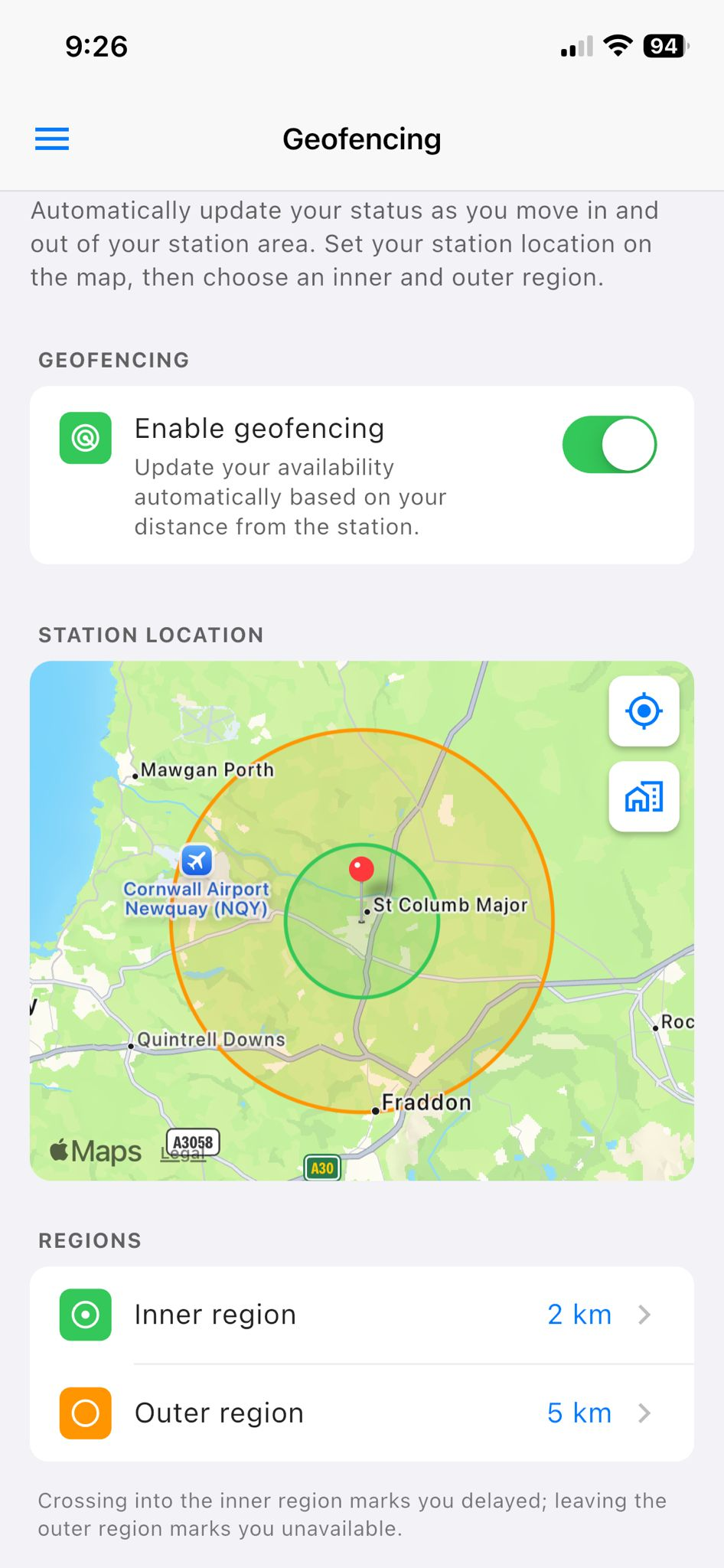
You start by dropping your station onto a map and drawing two rings around it: an inner ring and an outer ring. As you move between them, the app knows which availability makes sense for where you are:
- Inside the inner ring — you're at the station or right on its doorstep, so the app offers to mark you available.
- Between the two rings — you're still within reach but a little further out, so it offers delayed.
- Outside the outer ring — you're too far to turn out quickly, so it offers unavailable.
You decide how big each ring is — anywhere from 1 to 20 km — so it matches how your station actually works and how far your crew travels. The inner ring always sits inside the outer one.
Setting it up
It takes a minute. Open Geofencing in Settings, long-press the map where your station is to drop a marker, then choose the size of your inner and outer rings. Two shaded circles show exactly the area each one covers, so there's no guesswork about where the lines fall. Set it once and it syncs across your devices, so you don't have to do it again on every phone.
A nudge, not an automatic switch
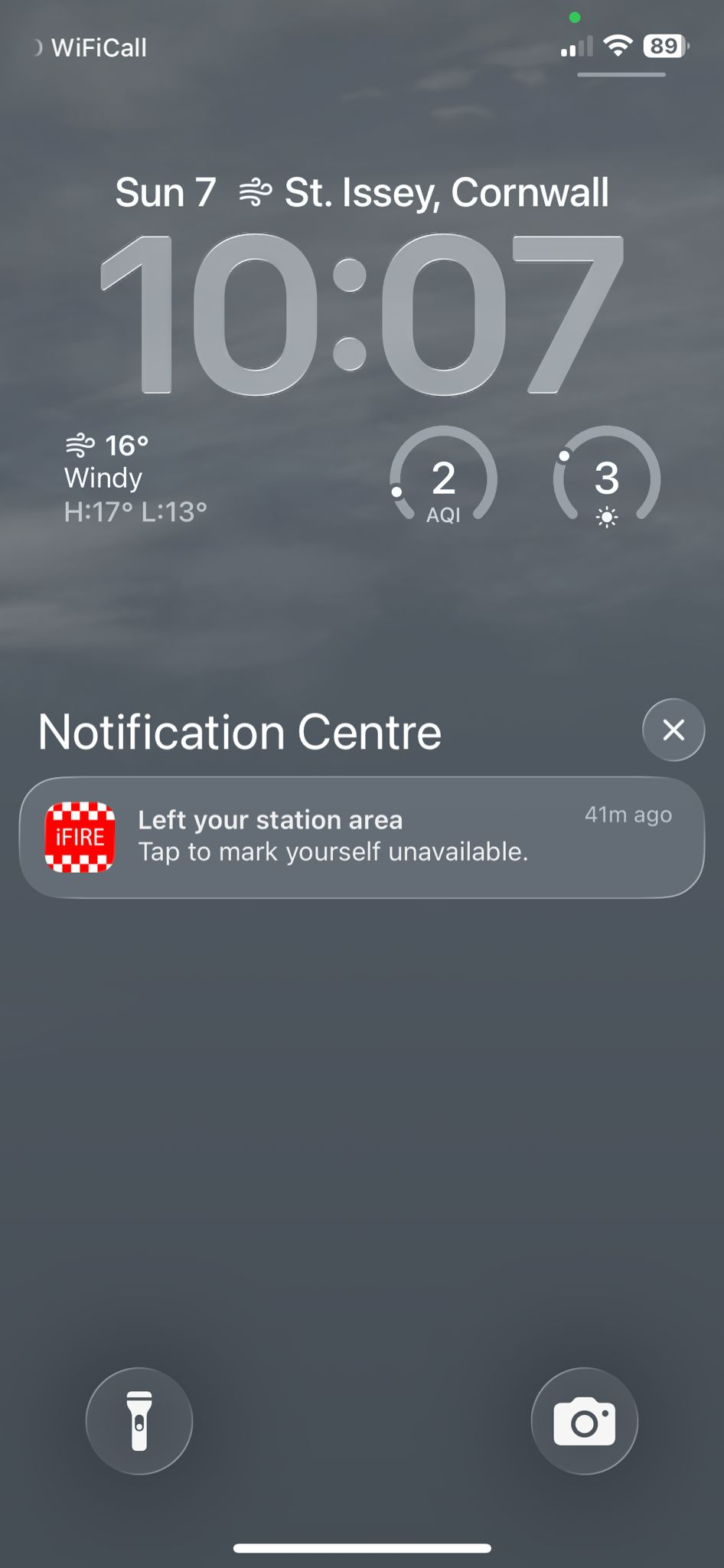
When you cross one of those rings, your phone gives you a notification: “Arrived at your station — tap to mark yourself available”, “Left your station area — tap to mark yourself unavailable”, and so on. One tap, and the right status goes through.
Until you tap, nothing changes. We built it this way on purpose: you should never find your status has quietly flipped because of where your phone happened to think you were. The app makes the suggestion at the right moment; you stay in control of what's actually sent.
It works in the background
For this to be any use, it has to notice you crossing a ring even when the app is closed and your phone's in your pocket. Geofencing uses the location features built into iOS and Android to do exactly that, which is why it asks to use your location in the background — the first time it needs it, your phone may ask you to allow location “Always”.
Those built-in features are designed to be light on battery: your phone isn't checking your position minute by minute, it's simply noticing when you cross a line you've drawn. If you only allow location while the app is open, geofencing still works — it just prompts you while you've got the app in front of you, rather than in the background.
Your location stays yours
Geofencing isn't a tracker. The app isn't following you around or keeping a log of where you've been. The only thing it ever works out is which side of your own rings you're on, and it works that out on your phone. The only thing that leaves your device is the status change you choose to send — and only once you've tapped to confirm it.
The point isn't to know where you are. It's to save you the bother of remembering to update your availability — while leaving the decision firmly with you.
Turning it on
Geofencing is one of our premium features, available to subscribers across iFire, iCrew and iRescue. If you're subscribed, you'll find it under Geofencing in Settings — set your station, choose your rings, allow location, and you're done.