
The crew board is a live display for a TV in your crew room. It shows who's available, whether the station is ready to respond, the next events and the last callout. When a callout comes in, it switches to a callout screen with a timer and who's responding.
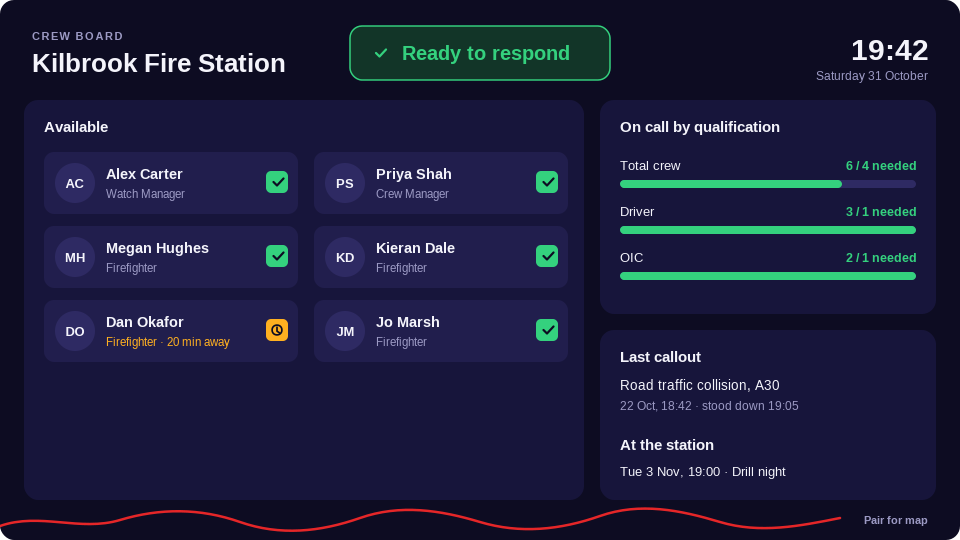
Put it on a TV
- On the dashboard, go to Station settings and find Crew board screens.
- Copy the board link with the copy button next to it.
- Open the link in the web browser on the TV, or on a computer or stick plugged into it.
The link is the key to the board, so only share it with your crew. Add ?theme=light to the end of the link for a light screen; the board is dark by default. You can also switch with the moon and sun button at the bottom of the board.
Show the responders map (admins)
For privacy, the board never shows where crew are unless an admin has paired that screen.
- On the TV, choose Pair for map at the bottom of the board. It shows a 6-character code for 15 minutes.
- On the dashboard, type the code into Code on the screen, give the screen a name and choose Pair screen.
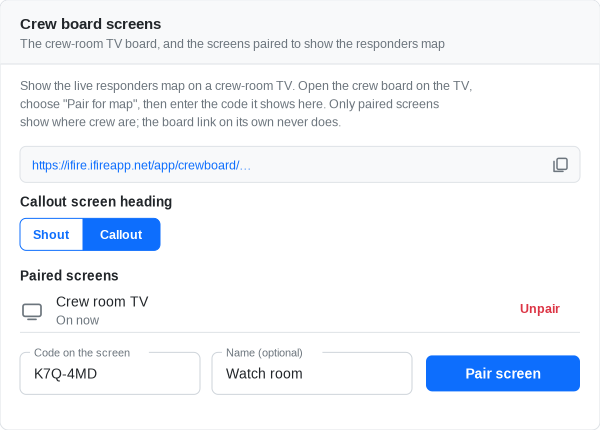
The map then appears on that screen during a callout. Choose Unpair to stop it straight away.
Make it your station's
- Callout screen heading: Shout or Callout.
- Ranks on the crew board: untick a rank to leave it off. Anyone who responds still shows.
- On iCrew, rename Helm/Cox, for example to Coxswain.
- Role names and ladders from the Crewing rules page are used on the board too.
Members' photos only appear if they switched on Show on the crew board in the app.