
Crewing rules set the fewest people your station needs on call, for example at least 4 crew, 1 driver and 1 officer in charge. The dashboard checks your planned availability against them and warns you before the station drops short.
Set your rules (admins)
- Go to Crewing rules.
- Under Minimum crew, choose Add a rule. Add station-wide rules, or rules for a particular vehicle.
- Pick a role, such as Total crew, Driver or OIC, and set the minimum with − and +.
- To limit a rule to certain hours or days, click its schedule (it starts as All day, every day).
- Choose Save rules.
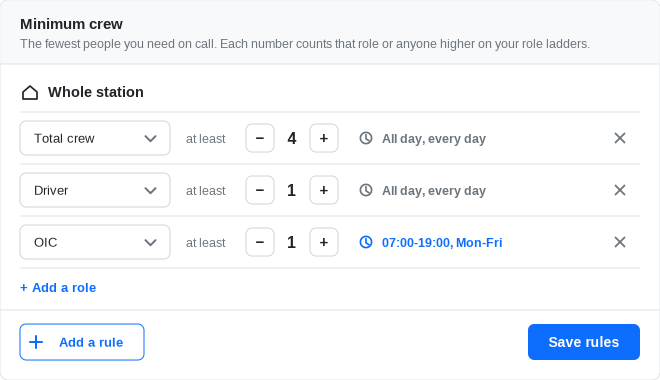
An overnight shift needs two rules, for example 19:00–24:00 and 00:00–07:00.
Where the rules are used
- The Required vs available rows on the Availability page.
- The Crewing Rules card on the Overview, and the number on Availability in the sidebar.
- Admin alerts: once you save rules, station admins and line managers get a notification when live crew drops below a rule, at most once every 30 minutes per rule.
- The crew board's Ready to respond (or Ready to launch) verdict.
- Crew's own low crew warnings in the app.
No rules yet?
Until you set rules, the dashboard warns when fewer than 2 drivers or 2 OICs are available (iFire and iRescue), or 2 Helm/Cox (iCrew). Counts only include crew whose qualifications are ticked, so set qualifications on the Crew page first.
Vehicles that are off the run are left out of every count. Crewing rules need a station subscription; without one the default minimum applies.