
Geofencing lets the app notice when you arrive at or leave your station's area, and offer to change your status. It's handy if you live or work near the station and come and go during the day. Geofencing needs a station subscription.
Switch it on
- Open the side menu and tap Geofencing.
- Switch on Enable geofencing.
- When asked, allow location access Always. The app needs it to notice when you cross a boundary while it's closed.
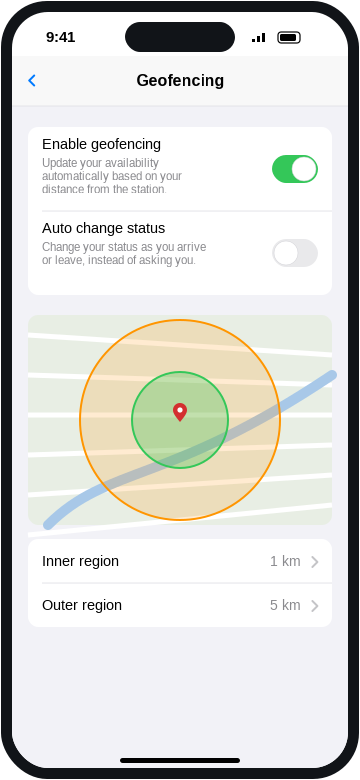
How the areas work
- Inside the green inner area: you're close enough to be available.
- Between the rings (orange): you're within reach, so delayed.
- Outside both: unavailable.
When you cross a boundary you get a notification, for example Arrived at your station: Tap to mark yourself available. Tap it to change your status. You won't be asked if you already have that status.
Switch on Auto change status to skip the tap: the app changes your status and tells you what it changed to.
Set your areas
Long-press the map to move the station's pin, then set the Inner region and Outer region sizes, from 1 to 20 km.
If your station has drawn its own areas on the dashboard, you'll see Use the station's areas. Station areas can follow roads, rivers and bridges, which circles can't. Your own circles are kept for when you switch it off.
Things to know
- Phones can take a few minutes to notice a crossing.
- If you're asked to allow background location, choose Continue, then Always. Without it, crossings aren't noticed while the app is closed.