
The easiest way to get your crew onto iOnCall is to invite them by email from the Station Dashboard. Station admins send the invites. Each person gets an email with links to the app and an Accept button. As soon as they sign in to the app with that email address, they're added to your station.
Invite someone
- Go to Crew and choose Invite by email.
- Enter their email address, name and rank.
- Choose Send invite.
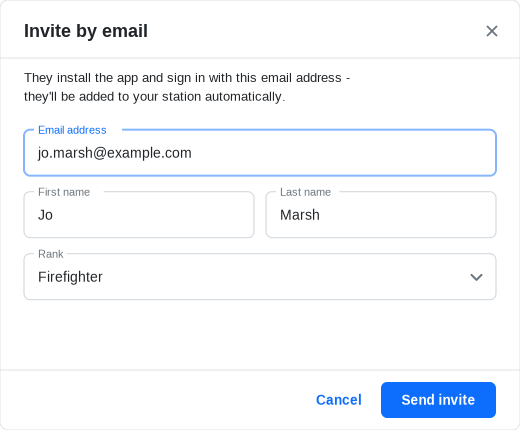
Use the email address they will sign in to the app with. If they already use the app with a different address, the invite won't find them.
Keep track of invitations
Below the crew list, admins see an Invitations card:
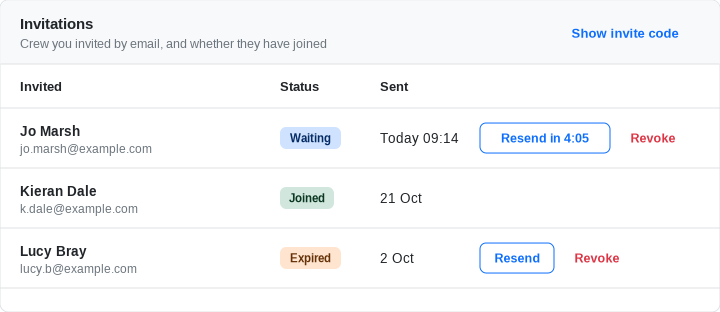
- Waiting: sent, but they haven't signed in yet.
- Joined: they're on the station.
- Expired: the invite ran out after 14 days. Choose Resend to send a fresh one.
- Revoked: you cancelled it.
You can resend an invite after 5 minutes, up to 10 times. Choose Revoke if you sent it to the wrong person.
Invite codes
If your station uses invite codes, the Invitations card also has Show invite code. It shows a 6-digit code and Copy invite text, so you can share the code with someone who joins from the app. In the app, the same code, an invite link and a QR code are under the station's Invite Crew. Codes only last a short time, so email invites are the better choice for most crew.
What your crew member does
- Open the email and install the app for your station (iFire, iCrew or iRescue).
- Sign in with the email address you invited.
- They're on the station. Nothing else to do.