
Planning your availability ahead lets your station see the gaps before they happen. Your status then changes by itself when each planned slot starts, so you don't have to remember.
See everyone's day
The Overview tab shows the whole crew's plan for a day, hour by hour. The row at the top counts how many people are available each hour; red numbers mean the station is short. Use the arrows to move between days, or tap the date to jump to one.
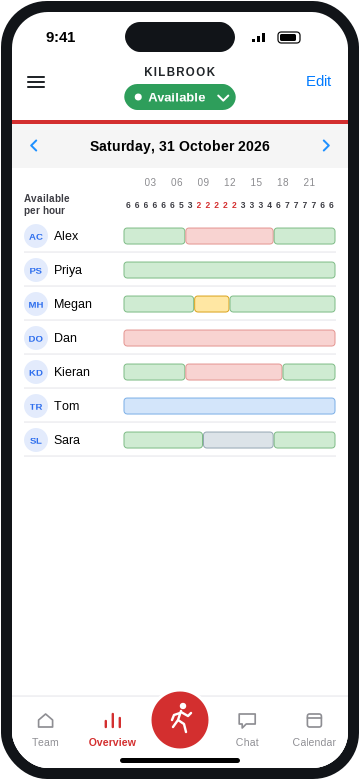
- Green: available. Yellow: delayed. Pink: booked off.
- Grey: on a course. Blue: on leave.
Everyone can see current and planned availability, from yesterday onwards. Older days are only visible to the member and their chosen line manager.
Change your hours for a day
- On the Overview tab, choose the day and tap Edit.
- Tap hours to choose them, or drag across a run of hours. Morning, Afternoon and All day select those hours for you.
- Tap a status at the bottom: Available, Delayed, Booked off, Course or Leave.
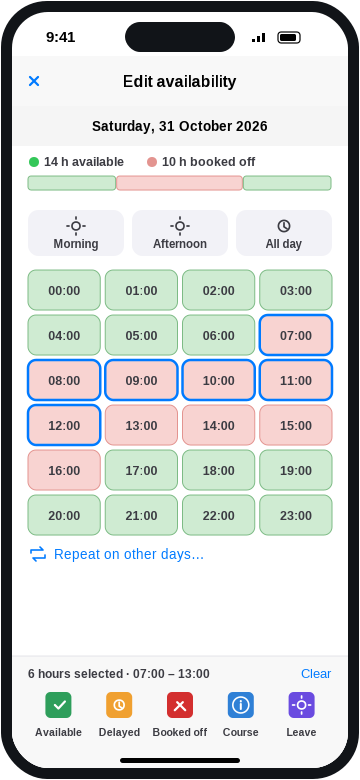
To set the same hours on other days, tap Repeat on other days…, choose a date range and the days of the week, then Apply.
Who else can change your plan
Station admins, and the line manager you chose, can change your planned hours from the app or the Station Dashboard. They can't see why you're unavailable, only that you are.
Your status follows your plan
When a planned slot starts, your status changes to match it. If you'd rather get a reminder, switch off Apply planned availability in Settings › Status Changes.