
A post-incident report records the facts of a callout while they're fresh: what it was, where, the times, who was helped and how it ended. There's one report per callout, kept with its attendance record.
Station admins and training officers can write them.
Write a report
- Go to Attendance and click the callout.
- Choose Incident report.
- Fill in what you know. Only What kind of incident is required.
- Choose Save report.
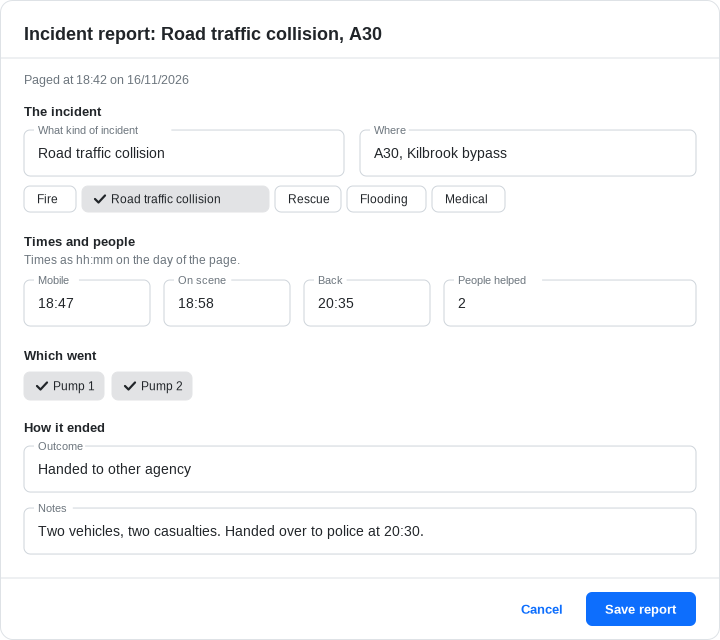
- What kind of incident and Outcome offer quick choices, such as Road traffic collision or Stood down before arrival. You can type anything else.
- Mobile, On scene and Back are times as hh:mm on the day of the page. A time earlier than the page counts as the next day.
- Which went lists your vehicles (lifeboats on iCrew) to tick.
The quick choices suit your service. iCrew offers choices like Person in the water and Vessel aground; iRescue offers Search, Rescue and Recovery.
Callouts that have a report show a document icon in the Attendance list. To delete a report, open it and choose Remove report. The callout and who attended it stay.
Export reports
On Attendance, choose Export, then Incident reports CSV, and pick the dates. The file opens in Excel or Google Sheets.