
If your station isn't on iOnCall yet, you can set it up yourself from the Station Dashboard in a few minutes. You become the station's first admin, and the station gets a 30-day free trial with every feature unlocked. No card is needed to start.
Create the station
- Go to the dashboard for your app (for example ifire.ifireapp.net/dashboard). Under Setting up a new station?, choose Set up your station.
- Enter your email address and choose Get one-time code. Enter the code from the email, then choose a password.
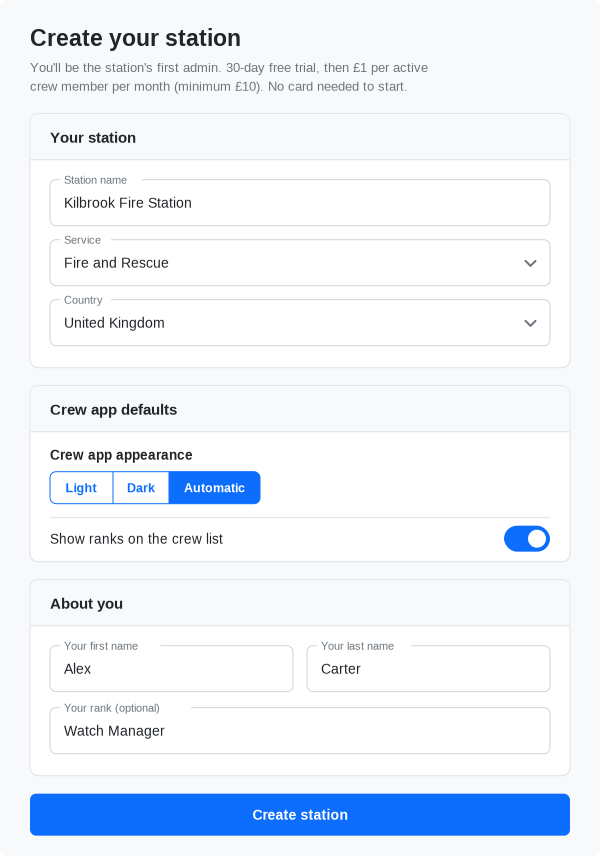
- Under Your station, enter the station name, the service and the country. UK stations always use UK time; other countries choose a time zone.
- Under Crew app defaults, choose how the app looks for your crew (Light, Dark or Automatic) and whether ranks show on the crew list. Crew can still pick their own look in the app.
- Under About you, add your own name and rank, then choose Create station.
You can create up to three stations in a day. If you were invited to a station by email, the dashboard shows You've been invited and offers to join it instead. Choose Set up a new station instead if you really do want a new one.
Work through the checklist
The Overview page shows a Get your station ready checklist to admins. Each step has a button that takes you to the right page:
- Check the station's location and time zone.
- Invite your crew by email.
- Set ranks and qualifications, so crewing warnings can count them.
- Add your vehicles (lifeboats on iCrew).
- Set your minimum crewing.
- Install the app on your own phone, so callouts reach you.
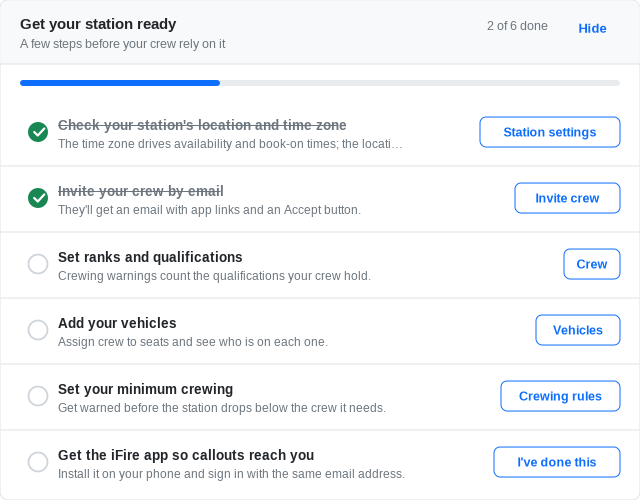
Choose Hide to put the checklist away once you are done.