
Your statistics
Open the side menu and tap Statistics to see how many hours you were available in a week, day by day, split into available, training and leave. Tap Select week to look at another week.
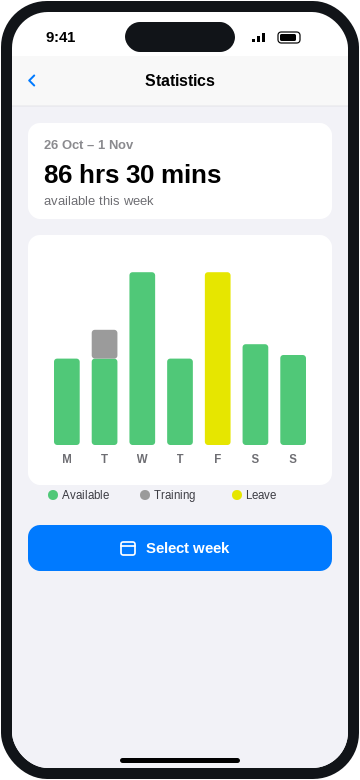
Your history is private. Only you and the line manager you chose can see it; station admins can't see it just because they're admins.
Contracted hours
If you're contracted to give a set number of hours a week, the app can track them for you and tell you when you reach 50%, 75% and 100%.
- Go to Settings › Contracted Hours.
- Switch on Track my contracted hours.
- Tap Weekly hours and set your hours.
Only available hours at your main station count, and the total resets at the start of each week. Contracted hours need a station subscription.
Station availability
Settings › Station Availability shows anonymous figures for the whole station: active crew, total hours, the average and median per person, and how the hours are spread. No names are shown, and figures only appear once at least three crew have recorded availability that week.
Weekly email
With Email updates on in Settings, you get a weekly summary of your availability. Your line manager also gets a weekly email showing your availability for the week.