
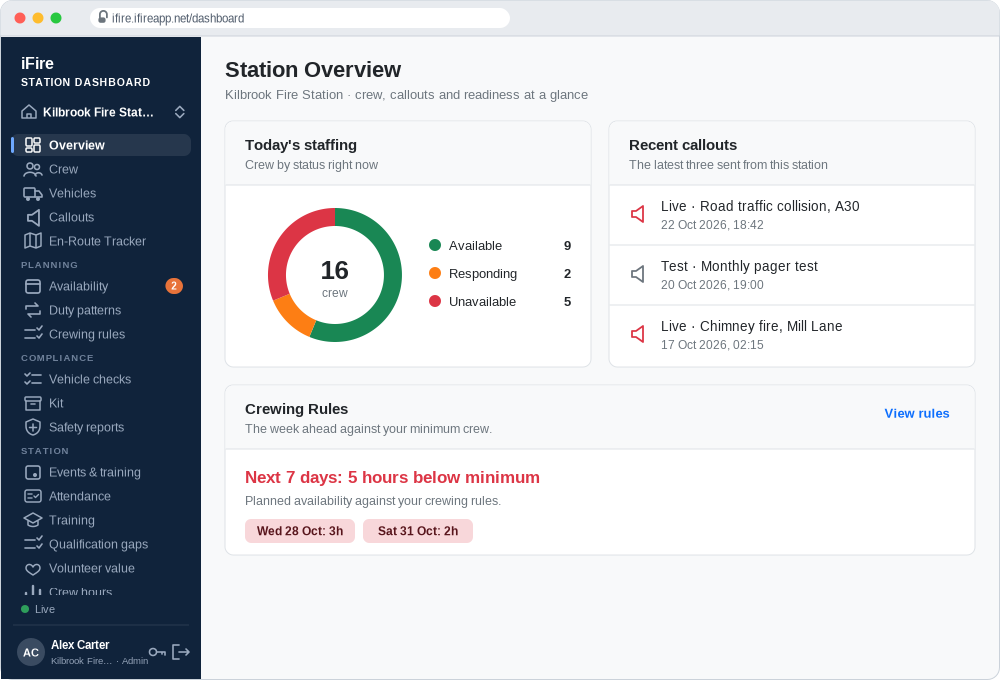
The Overview is the first page you see after signing in. It gives a quick read of the station today and anything that needs attention this week.
What's on it
- Today's staffing: how many crew are available, responding and unavailable right now.
- Last week's availability: how many people gave light, moderate, strong or heavy cover last week. To protect privacy it stays blank when too few crew are active.
- Vehicles at a glance (Lifeboats on iCrew): how many vehicles you have, how many crew are assigned and how many of them are available.
- Recent callouts: the three newest callouts, live in red and tests in grey.
- Crewing Rules: how many hours in the next 7 days fall below your minimum crewing, with a badge for each day that's short. Choose View rules to change them.
The sidebar
The navy sidebar takes you to every part of the dashboard. What's in it depends on your role: admins and training officers see extra record pages. A few things to look out for:
- A number on Availability means that many of the next 7 days have an hour below minimum crewing.
- A number on Billing, such as 21d, counts the days left in your free trial or grace period.
- If you belong to more than one station, choose the station name at the top to switch.
- Live near the bottom means the page is updating by itself. You don't need to refresh it.
- Your name is at the very bottom. Choose it to open My profile. The key icon changes your password, and the icon next to it signs you out.
If your station has no admin
If the last admin leaves, the longest-standing member becomes admin automatically. If a station still ends up with nobody in charge, the Overview shows Your station has no admin. Any member can nominate someone, themselves included, and they become admin once enough other members back them. See When your station has no active admin.