
You can keep a copy of each crew member's qualification certificates on iOnCall: one file for each qualification they hold. It saves hunting through emails or a filing cabinet when someone asks to see one.
Station admins and training officers can upload, download and remove certificates. Each member can download their own in the app.
Upload a certificate
- Go to Training and click the member's name.
- Under Certificates, find the qualification and choose Upload a certificate.
- Pick the file.
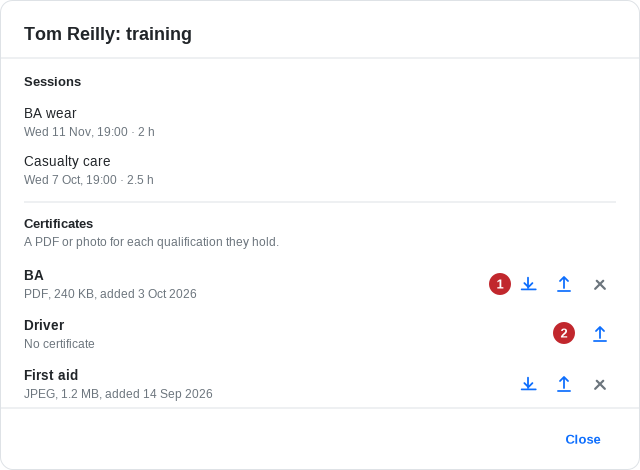
- Certificates can be a PDF, PNG or JPEG, up to 5 MB. A clear photo taken on a phone is fine.
- There's one certificate per qualification. Choose Replace to upload a newer one.
- The list only shows the qualifications the member holds. If one is missing, it needs adding to their profile first.
Download or remove
Choose Download to save a copy. Choose Remove to delete it. A removed file can't be got back, so you'd need to upload it again.
For crew
Crew see their own training and certificates in the app, under My training in the side menu. See My training and qualification reminders.