
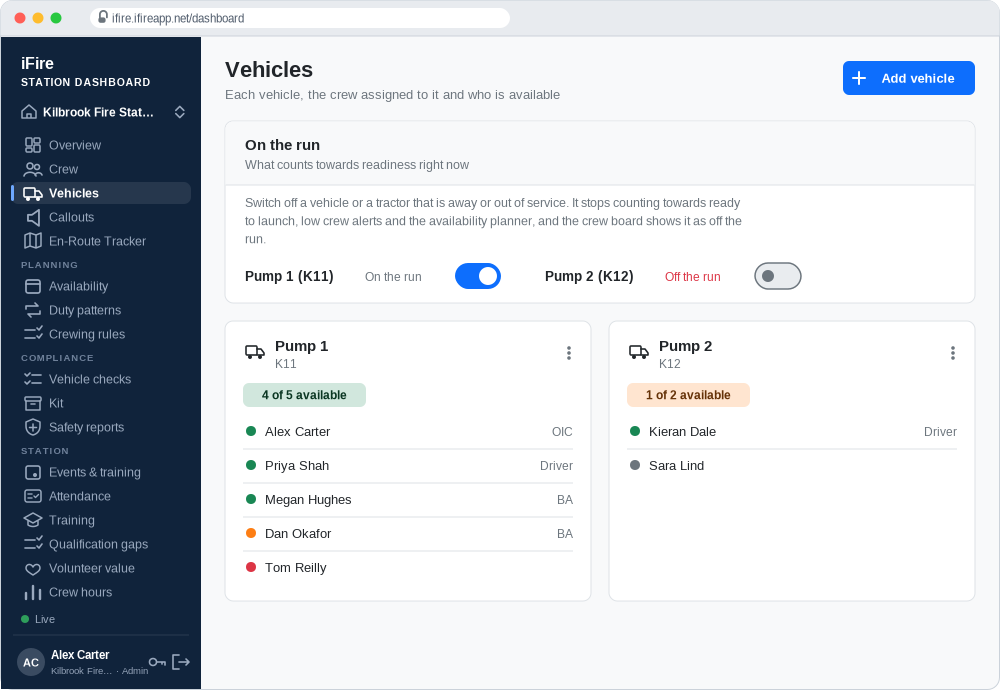
The Vehicles page (Lifeboats on iCrew) shows each of your station's vehicles with the crew assigned to it and how many of them are available right now.
Add a vehicle (admins)
- Go to Vehicles and choose Add vehicle.
- Give it a Name and, if you use one, a Callsign.
- Choose Save.
Assign crew to a vehicle
- Choose the ⋮ menu on the vehicle, then Assign crew.
- Tick each person who crews it. You can add a Seat role, such as Driver or OIC.
- Choose Done. Changes save as you go.
The badge on each vehicle, such as 4 of 5 available, counts the assigned crew who are available now.
Take a vehicle off the run
When a vehicle is away for servicing or out of action, switch it off in the On the run card. While it's off:
- it no longer counts towards ready to respond (or ready to launch),
- it doesn't trigger low crew alerts or planner warnings,
- the crew board shows it as Off the run.
Switch it back on when it returns. On iCrew, tractors can be taken off the run the same way. Only station admins can change this.
Rename or delete
Use the ⋮ menu on the vehicle and choose Rename or Delete.