
It's been a busy week. Stations have been telling us what slows them down, and most of it is now fixed. There's a new crew board for the crew room, more ways to answer a callout, a proper record of who responded and when, and a long list of improvements to the app. Here are the highlights.
A crew board for the crew room
Put the crew board up on a TV in the crew room and everyone can see who's on call without picking up a phone. It's a web page, so any smart TV, spare monitor or old laptop will do. Station admins copy its link from Station settings on the station dashboard.
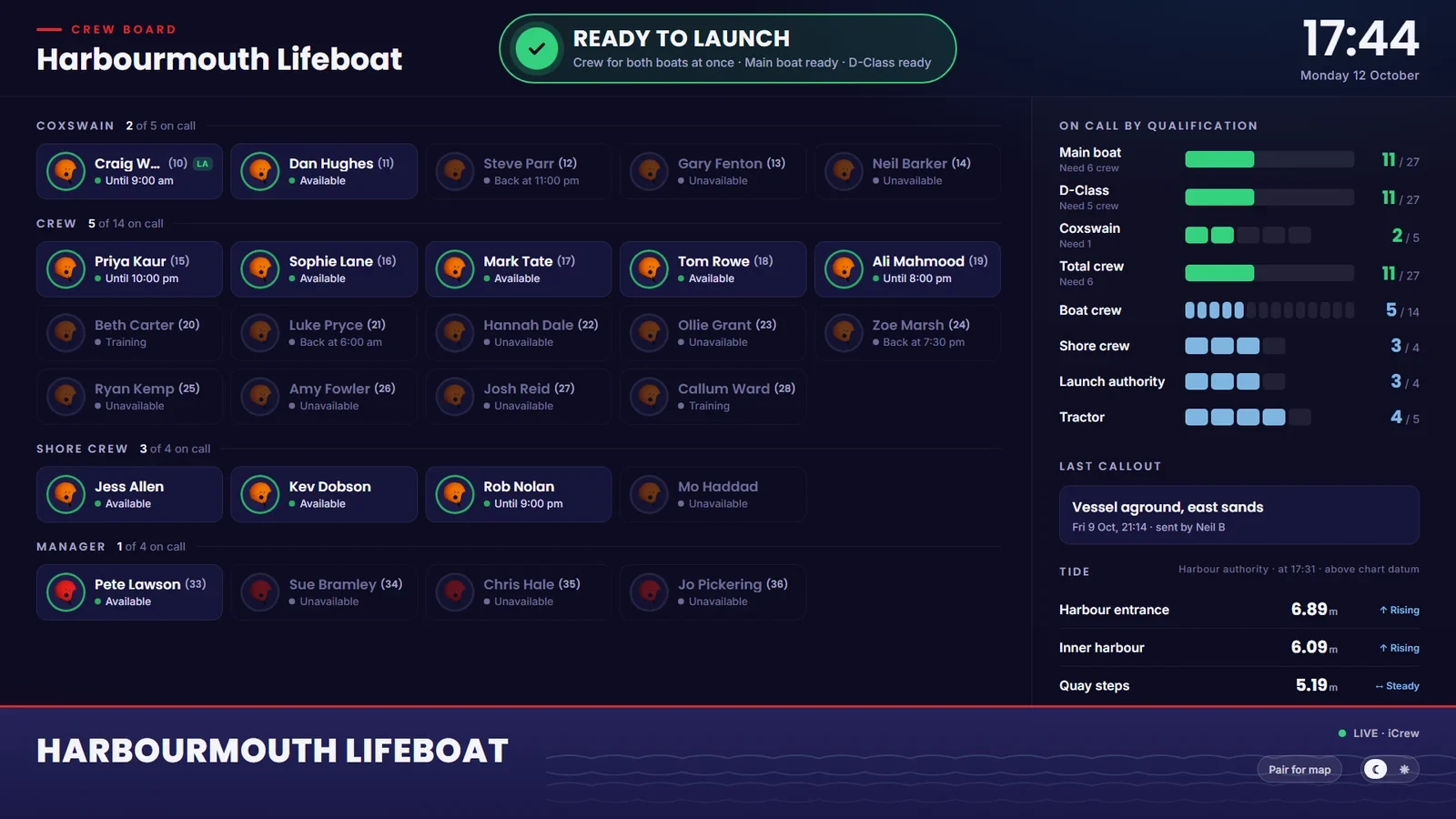
When it's quiet, the board shows:
- Whether you can go. A banner across the top checks your station's crewing rules and says plainly whether you have enough crew. With two boats or appliances, it also tells you whether you can crew both at once or only one at a time.
- Everyone, grouped by role. Who's available, who's available until a set time, and when people who are off will be back.
- Who's on call for each role. A bar for each role shows how many are on call against the number you need.
- The last callout, with who sent it and when.
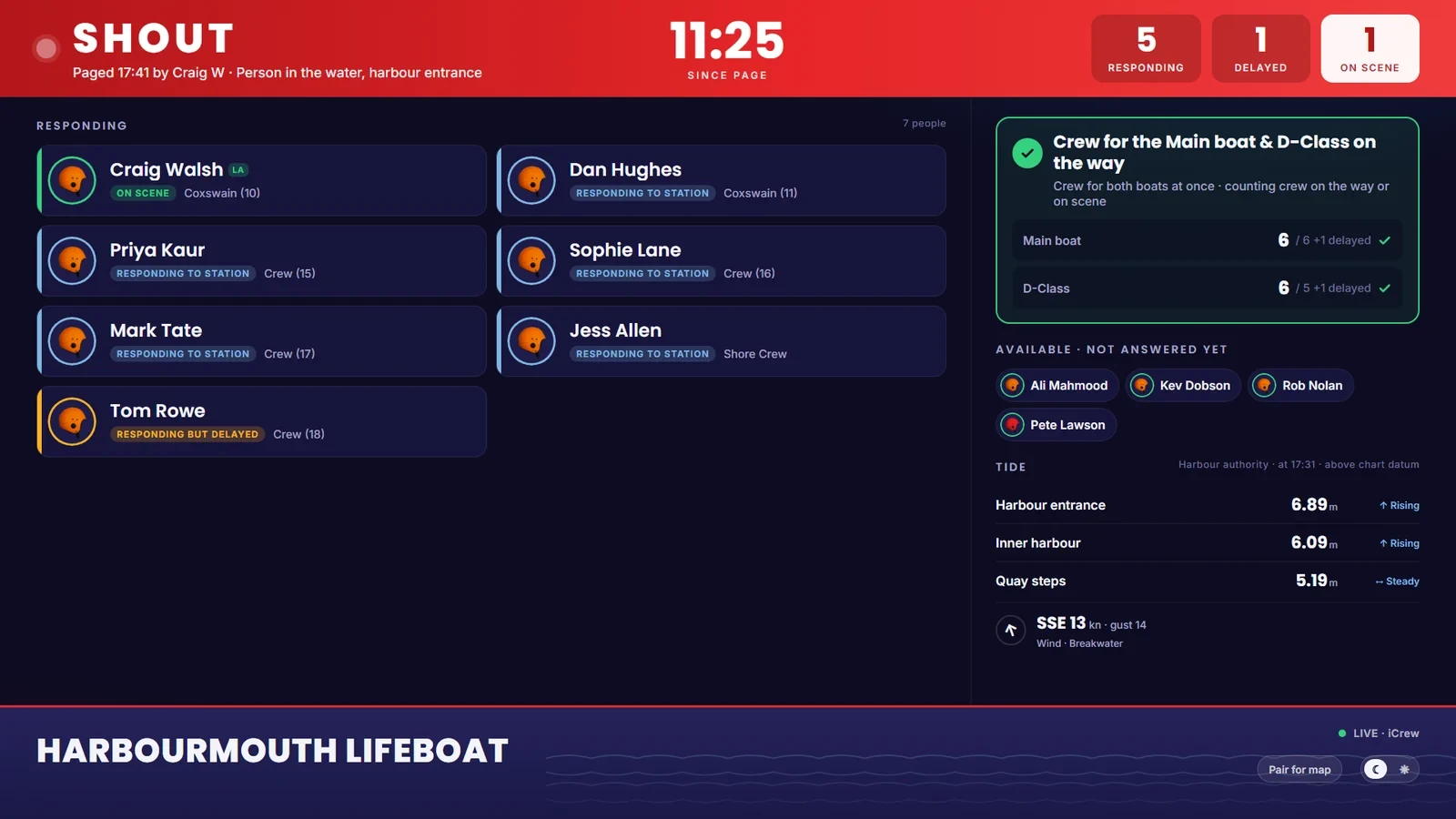
When a callout goes out, the board changes straight away. It shows who's responding, who's delayed and who's on scene, whether your minimum crew is on the way, and who's available but hasn't answered yet.
You can set it up to suit your station:
- Choose whether it says Shout or Callout, and use your own names for roles.
- Hide rank groups you don't want on the wall. Anyone responding still shows.
- Switch between light and dark from a button on the board itself.
- Crew can add a profile photo in the app, cropped on the phone. It only shows on the board if they choose to show it.
- Coastal stations can show live tide heights and wind on the board. We set this up for you wherever we can get live readings for your harbour, so get in touch if you'd like it.
The board's link is open, so it never shows where anyone is. If you want a map of responders on the way in, pair the TV first. It shows a short code, a station admin enters that code on the dashboard, and from then on only that screen shows the map.
There's more about the board in The Crew board: your station on the crew-room TV.
Answer a callout without opening the app
The callout alert now has three buttons: I'm responding, Responding but delayed and I'm not responding. Press one and your station sees your answer at once, so whoever's running the callout knows who's coming without having to ring round.
Answering while driving is covered too. On iPhone, just say "Hey Siri, iFire I'm responding" (or iCrew, or iRescue). It works through CarPlay and there's nothing to set up. On Android, you can choose for the app to notice when your phone connects to your car's Bluetooth soon after a callout. It can then ask you with one button, or mark you as responding automatically.
A record of who responded, and a proper stand down
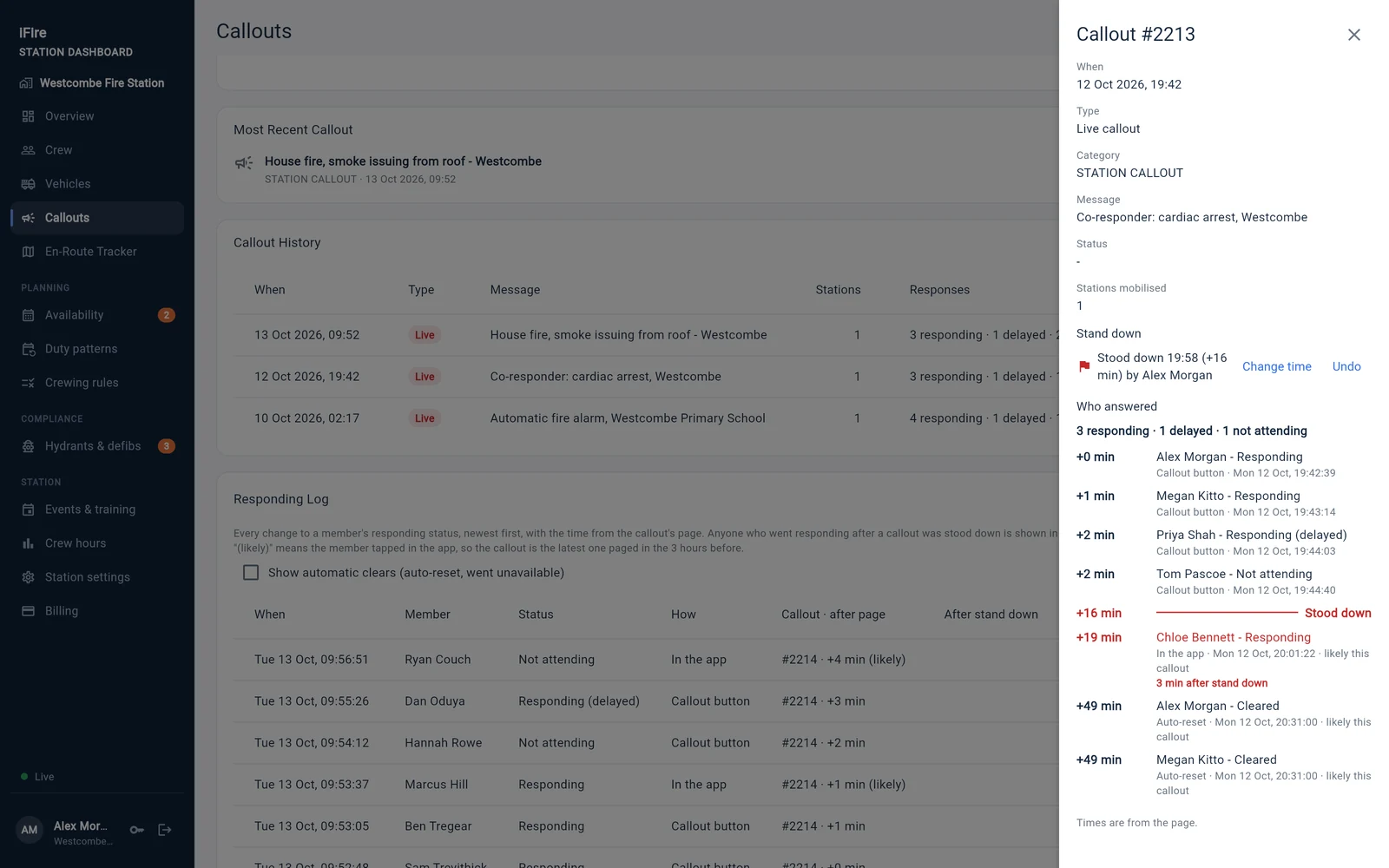
Every callout on the dashboard now has a responding log. It shows who answered, what they said and how long after the page, and whether they used the alert's button or the app. When the job's over, a station admin can press Stand down. Everyone at the station gets a "Stood down" notification, and anyone who goes responding after that is shown in red. No more relying on memory to work out who turned out after the stand down.
Crewing rules that match how you crew
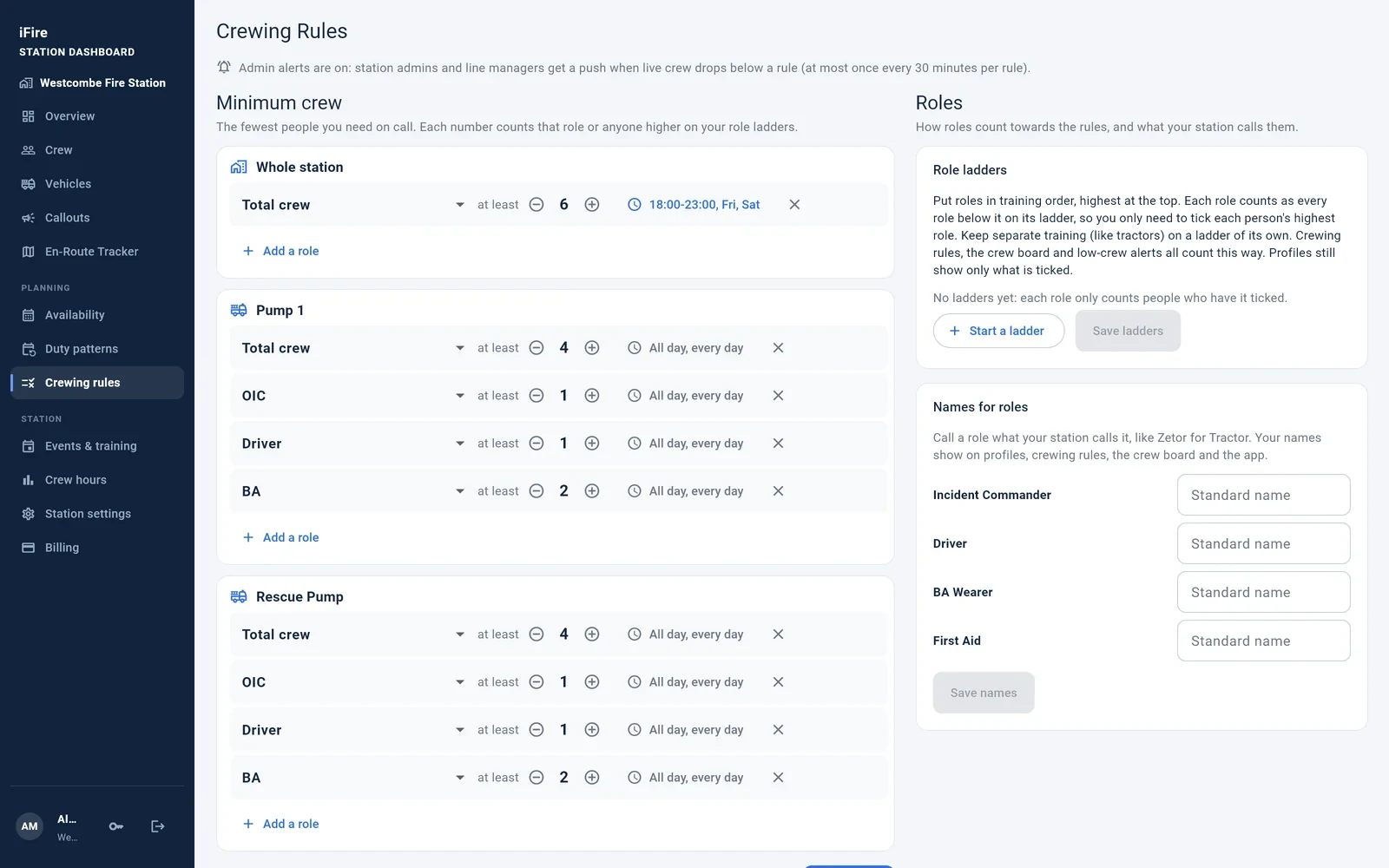
The Crewing rules page has been reworked. There's one card for each appliance or boat, and one line for each rule. You can also set times and days for a rule, such as a higher minimum on Friday and Saturday evenings.
- Role ladders. Put roles in training order and each one counts towards every role below it, so you only need to tick a person's highest role. Crewing rules, low-crew alerts and the crew board all count this way.
- Names for roles. Call a role whatever your station calls it. The name you choose shows on profiles, crewing rules, the crew board and in the app.
- Lifeboat crews get boat crew, shore crew, tractor and navigator roles, and iCrew's dashboard now says Lifeboats instead of Vehicles.
Lifeboat stations can read more in Crewing rules that understand a lifeboat station.
More for station admins
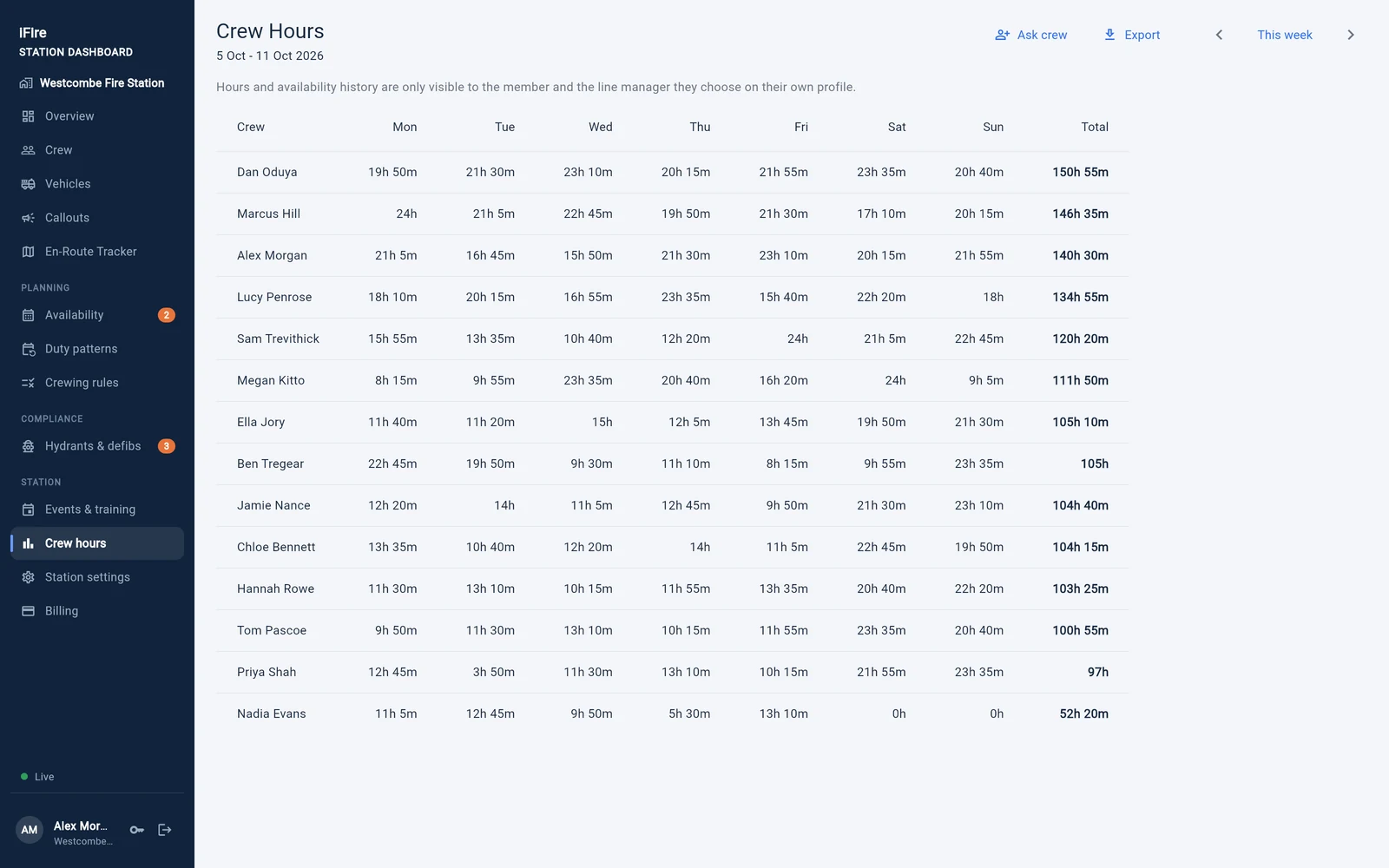
- Crew hours export. Line managers can download up to six months of their crew's hours as a spreadsheet, ready for development reviews. Hours are only ever visible to the member and the line manager they've chosen. If someone hasn't chosen one yet, Ask crew sends them a notification asking them to.
- Keep my plan off the dashboard. A member can choose for their future availability not to appear on the dashboard's planning grid. It still counts towards your crew numbers.
- More than one station? Switch between them from the dashboard menu.
- Station defaults for the app. Choose light or dark and whether ranks show for your whole crew. Anyone can still choose their own setting.
- The dashboard now uses the same green, orange and red status icons as the app.
In the app
Dark mode, everywhere
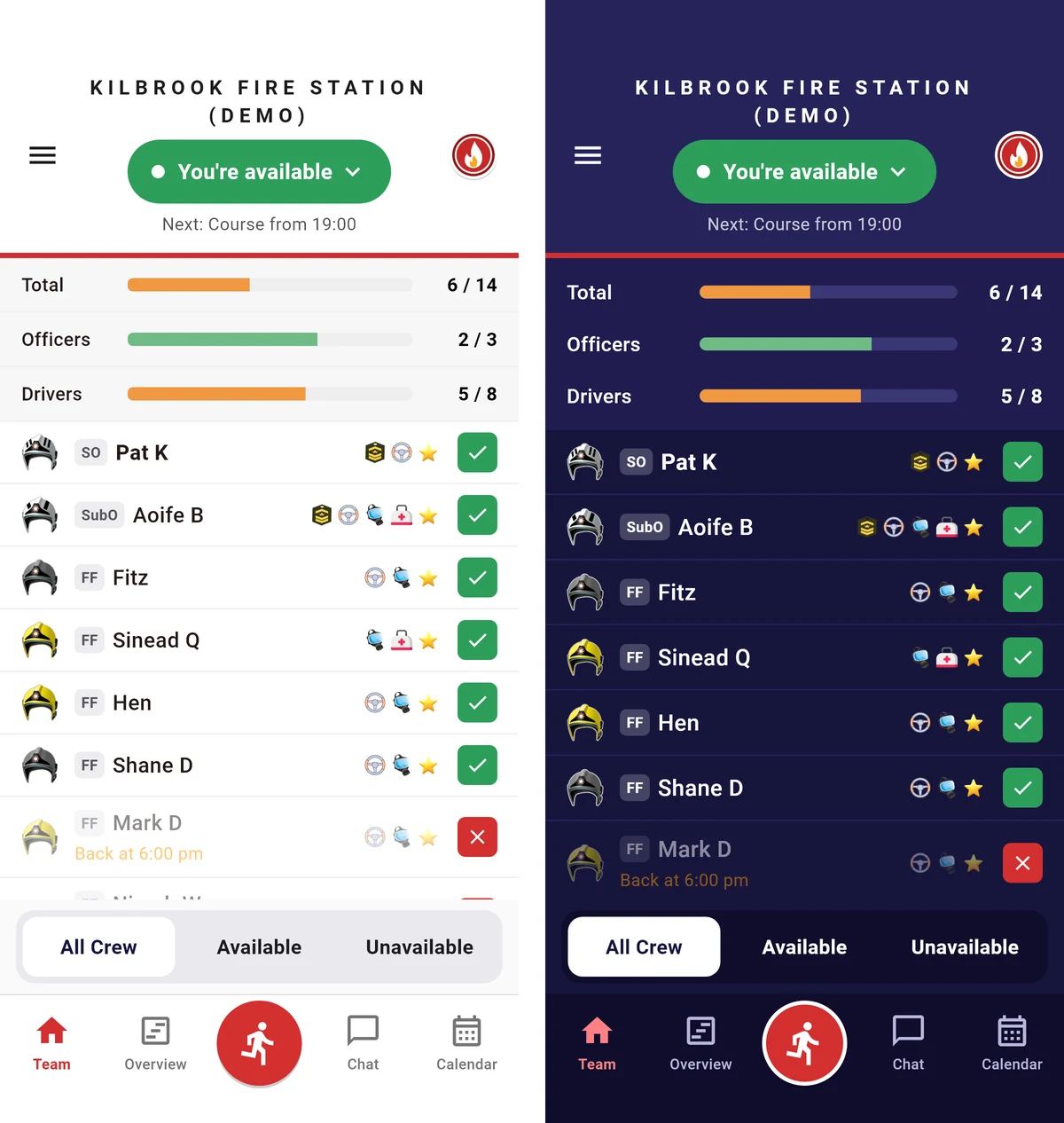
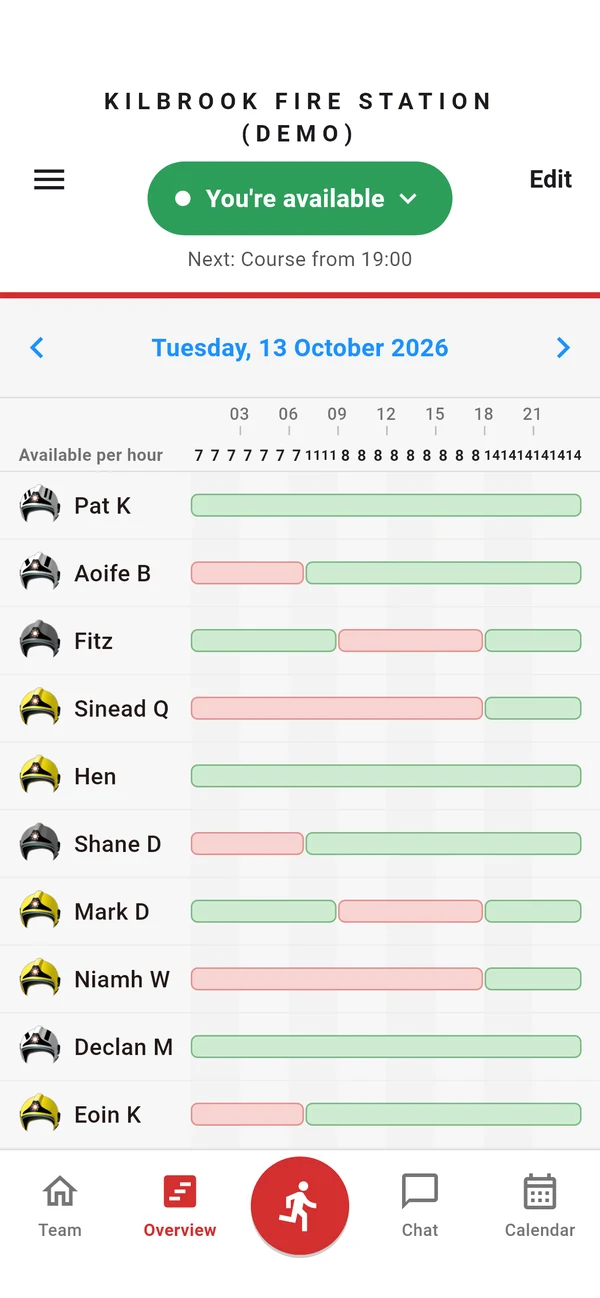
Go to Settings > Appearance and choose Light, Dark or Automatic, which follows your phone. Every screen now follows your choice, not just the Team screen. The Team list can also show each person's rank before their name, and the header shows your next planned change, such as "Next: Course from 19:00".
A clearer Edit availability screen
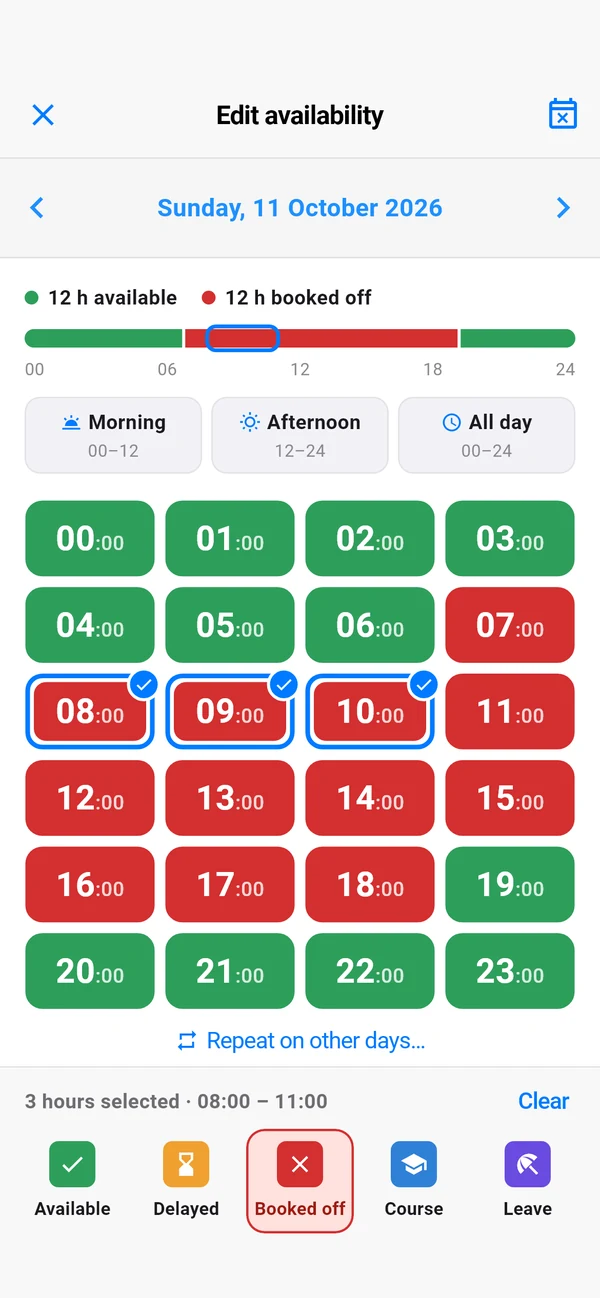
The Edit availability screen has been redesigned. It shows every hour of the day in its real status colour. Tap or drag across hours to pick them, then tap a status to save. There are shortcuts for the morning, the afternoon or the whole day.
Calendar: pick a run of days, change your mind
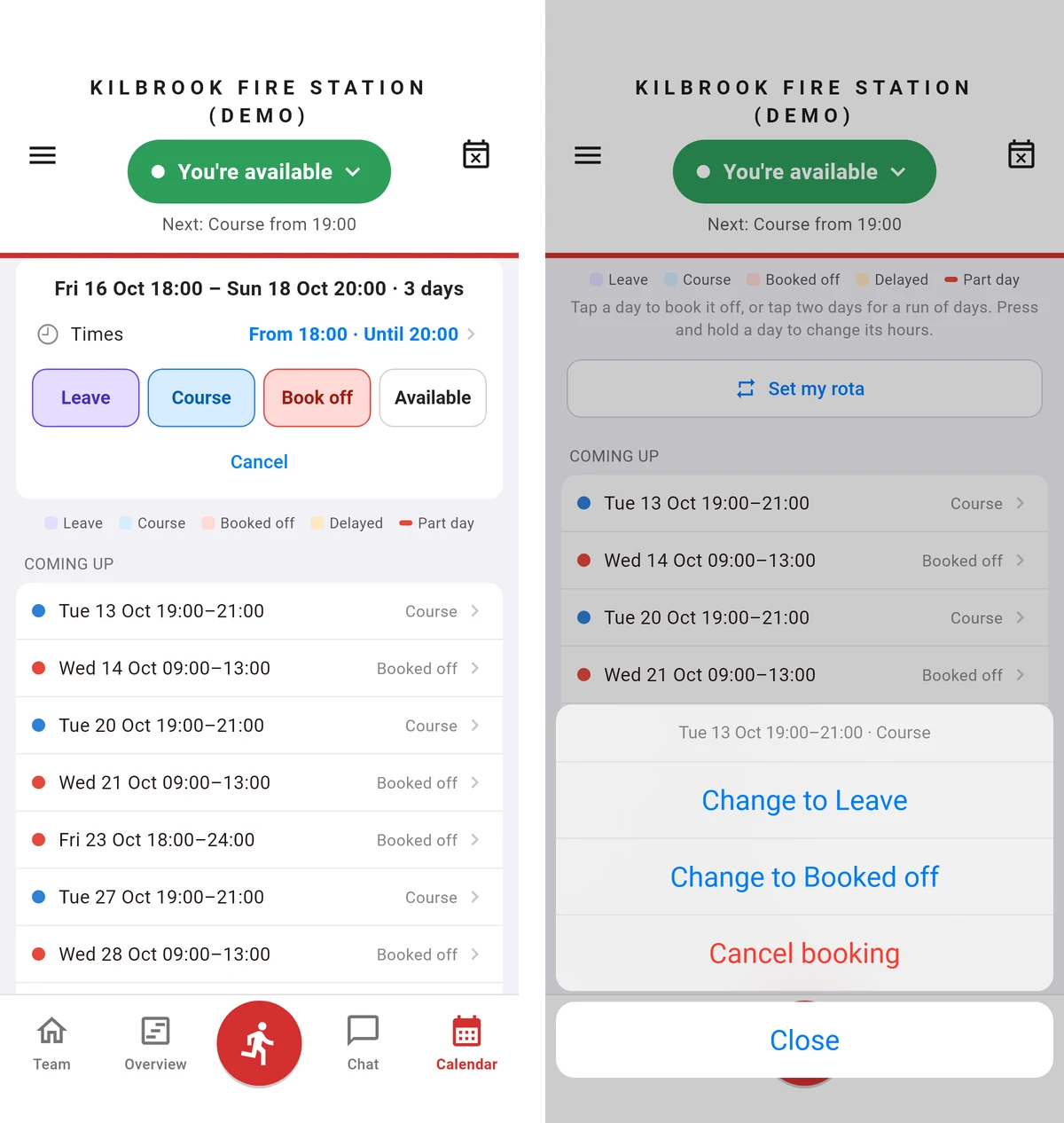
- Pick a run of days. Tap the first day and the last, then choose Leave, Course or Book off. You can also set a start and end time, for example from Friday 18:00 to Sunday 20:00.
- Change or cancel a booking. Tap anything in Coming up to change it to something else or cancel it.
- Working shifts? Set my rota can now mark only certain hours on your days off, like 19:00 to 07:00, so you show as available for the rest of the day.
And a few smaller things
- Team list settings now live on one Crew list page: sort order, ranks, and which view the Team tab opens on.
- If someone's said how long they're available for, the crew list shows it, for example "Available until 12:00 pm".
- The Overview grid has an Available per hour row, and an hour with nobody available shows in red.
- If test alerts stop arriving, Re-register this device in Notifications settings fixes it in one tap.
Getting it
The crew board, the responding log, stand down and the dashboard changes are live now. The app changes come in the next update of iFire, iCrew and iRescue for iPhone and Android.
Thank you to the crews whose feedback shaped this week's work. If something in your day-to-day could be easier, tell us. There's a good chance it ends up in the next update.
Screenshots are from made-up stations and crews.