
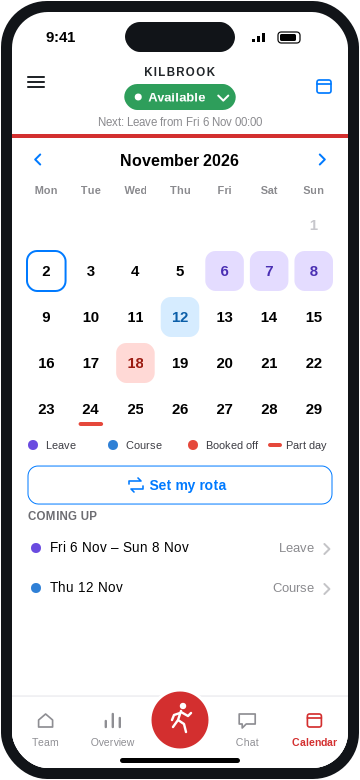
The Calendar tab is your own diary for the station. Use it to book leave, courses and days off, or to fill in months of shifts at once with your rota.
Book days off
- On the Calendar tab, tap a day. To book a run of days, tap the first day and then the last.
- Choose the Times: All day, or Certain hours.
- Tap Leave, Course or Book off.
You can book up to 92 days at a time. Tap Available instead to clear days you'd booked.
To change or cancel a booking, tap it under COMING UP. Press and hold a day to change its hours in detail.
Book time off from anywhere
Book time off in the side menu (or the calendar icon at the top of the Calendar tab) books a stretch of days with start and end times. Your plan changes now, and your status follows it when the time comes.
Set your rota
If you work a regular pattern, such as 4 on, 4 off, let the app fill in your calendar.
- Tap Set my rota.
- Pick a pattern, or Custom to choose the days on and off.
- If you work shifts, set Unavailable on days off to the hours you're at work, such as 19:00–07:00, so you show as available the rest of the time.
- Choose the First day on and How far ahead to fill, up to 52 weeks.
- Check the preview and tap Set my rota.
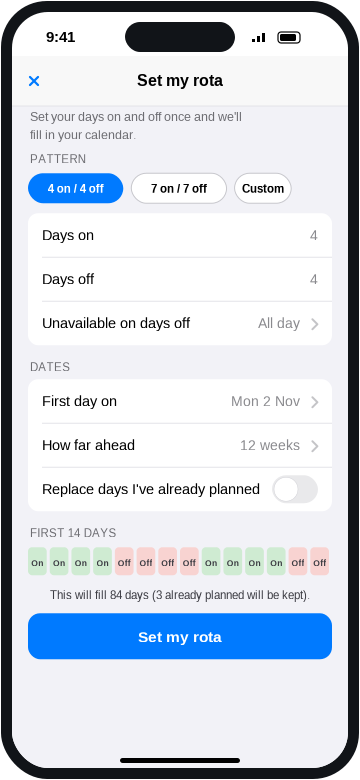
Leave and anything else you've already planned is kept, unless you switch on Replace days I've already planned.
Some statuses need a station subscription. If one is locked, the app says so and your station admin can set up a subscription on the dashboard.
See your plan in your phone's calendar
Settings › Calendar link adds your plan and your station's events to your phone's calendar, and keeps them up to date. See Adding your plan to your phone's calendar.