
Callout alerts can stop after a phone update, a new phone, or a change to battery or notification settings. Work through these steps, then send yourself a test alert.
1. Look for the warning on the Team screen
If the app thinks alerts could be silent, an amber bar says Call-out alerts may be silent on this phone. Tap Fix to go straight to the setting that needs changing.
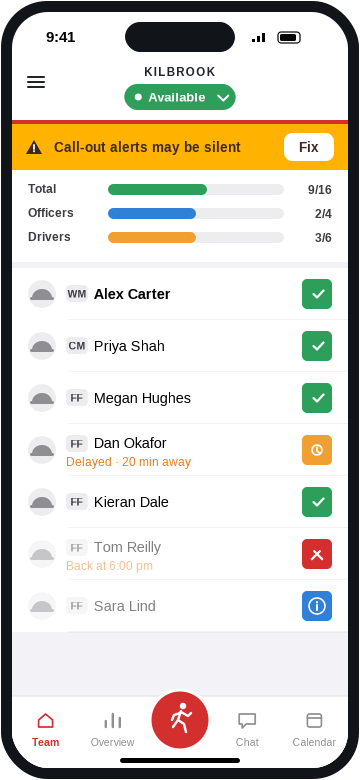
2. Send a test alert
Go to Settings › Notifications settings, tap Send test alert and lock your phone. It should sound the full callout alarm within a few seconds.
3. If the test doesn't arrive
- Tap Re-register this device on the same screen, then send another test. This is the usual fix after a new phone or restoring a backup.
- Check notifications are still allowed for the app in your phone's settings. Updates sometimes reset them.
- On Android, check the app isn't restricted or put to sleep by battery saving.
- On iPhone, check Critical Alerts is still on.
4. Check you're signed in and booked on
- A signed-out phone gets no alerts. If the app asks you to verify your email, do it straight away.
- If you've switched on Quiet alerts when I'm booked off, alerts arrive as an ordinary notification while you're unavailable. That's expected.
- If you belong to more than one station, check you're on the crew list of the station that paged.
The full guide, with every setting on iPhone and Android, is Making sure callout alerts reach you.