The Station Dashboard is the web side of iFire, iCrew and iRescue. Station admins and line managers use it to plan availability, manage crew and send callouts. Crew members can sign in too, to see the station, keep their own details up to date on My profile and choose their line manager.
Where to find it
Open the dashboard for the app your station uses, on a computer or tablet:
- iFire: ifire.ifireapp.net/dashboard
- iCrew: icrew.ifireapp.net/dashboard
- iRescue: irescue.ifireapp.net/dashboard
Sign in with the same email address you use in the app.
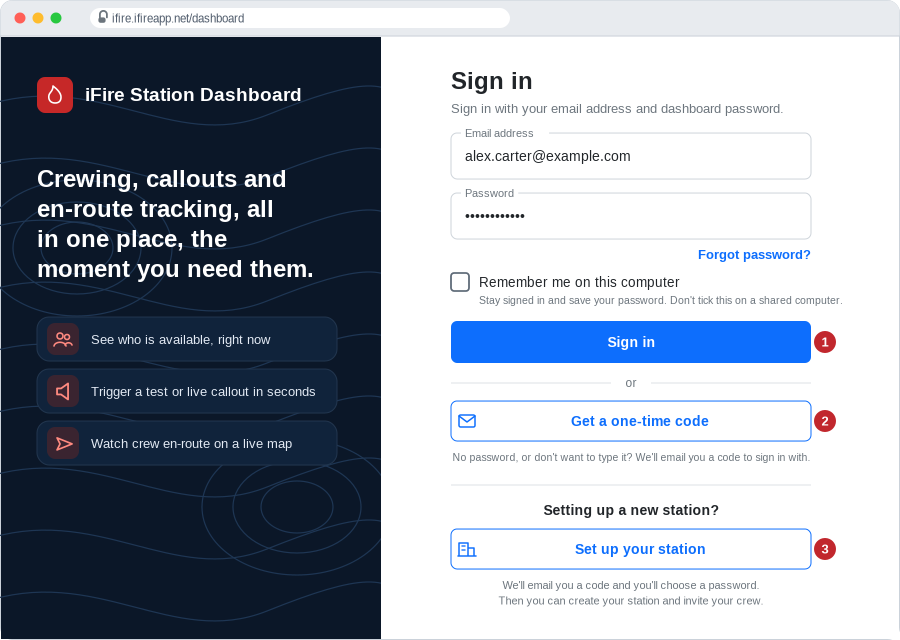
If your station isn't on iOnCall yet, choose Set up your station. See Setting up a new station.
Sign in with a one-time code
If you have never set a dashboard password, or have forgotten it, you don't need one.
- Choose Get a one-time code.
- Enter your email address and choose Get one-time code.
- Type the code from the email and choose Sign in.
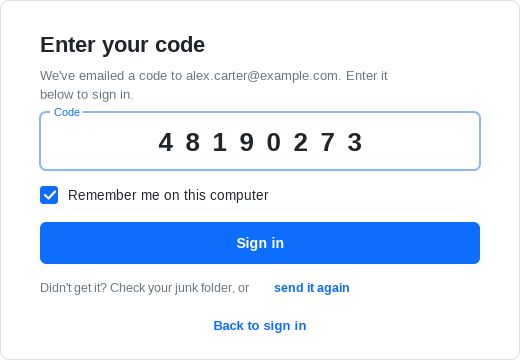
Didn't get the email? Check your junk folder, then choose send it again. It can take a minute or two to arrive.
Set or reset your password
Choose Forgot password? on the sign-in page. We email you a code. Enter it, choose Verify code, then choose a new password. Passwords need at least 10 characters. A few words strung together is easy to remember and hard to guess.
Once signed in, you can change your password at any time. Use the key icon next to your name at the bottom of the sidebar, or Change password on My profile.
Staying signed in
- With Remember me on this computer ticked, you stay signed in for 30 days.
- Without it, you are signed out when you close the browser, or after 12 hours.
- Don't tick it on a shared computer, such as the one in the station office.
- To sign out, use the sign-out icon next to your name at the bottom of the sidebar.
Using a phone
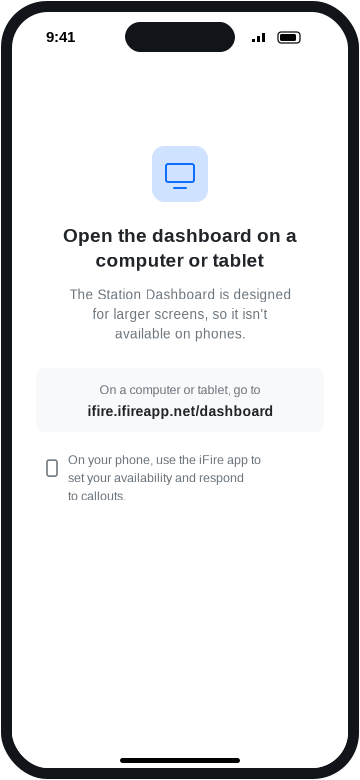
The dashboard is built for larger screens, so it doesn't open on phones. Tablets such as an iPad work. On your phone, use the app.