
When a callout is cancelled or the job doesn't need everyone, stand the crew down so nobody else turns out. Station admins and launch authorities can stand down from the app; everyone else sees when it happens.
Stand down from the app
- On the Team screen, under the responding bar, tap Stand down.
- Check it's the right callout, then slide SLIDE TO STAND DOWN all the way across.
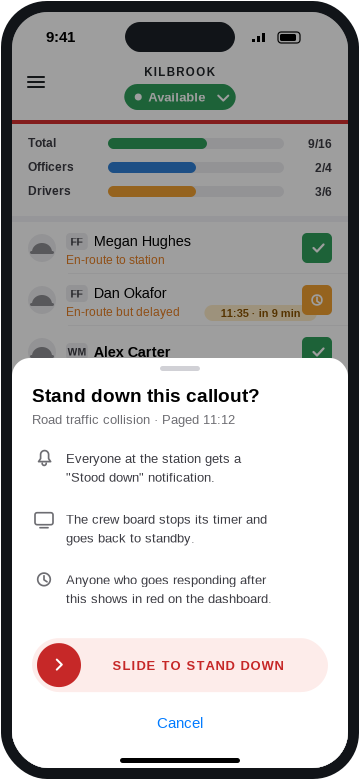
When you stand down:
- everyone at the station gets a Stood down notification,
- the crew board stops its timer and goes back to standby,
- a green Stood down message appears in the station chat,
- anyone who goes responding afterwards shows in red on the dashboard's responding log.
Everyone then sees Stood down 11:34 by Priya Shah on the Team screen.
Clearing responding statuses
Your station admin can choose, on the Station Dashboard, to clear everyone's responding status when a callout is stood down. If your station does this, Settings › Status Changes says so and shows When stood down under Automatically reset status. You can still pick a time there to have yours cleared sooner.
Keep going on a long job
The crew board shows a callout's screen and timer for 6 hours after the page, unless it's stood down first. For a long job, tap Keep going next to Stand down to keep it up for another 6 hours from now. The Team screen shows Crew board holds it until and the time. You can tap it again as often as you need.
An hour before the board lets a callout go, the person who paged it and the station's launch authorities may get a Still on this job? notification. It's a reminder to tap Keep going, or to stand down.
Admins can also stand down, correct the time or undo it on the Station Dashboard. See Standing down and the responding log.