
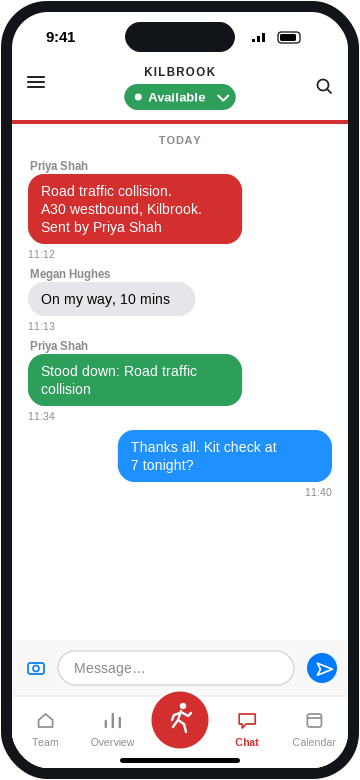
Every station has its own group chat in the app. Use it for anything the crew need to know: kit checks, training, swaps, or a quick "on my way".
Send a message
Open the Chat tab, type in Message… and tap send. With nothing typed, the button sends a thumbs-up.
Send a photo
- Tap the camera button, then Take photo or Choose from library.
- Add a caption if you like, then tap send.
A smaller copy is sent to save data; the original stays on your phone. Tap a photo in the chat to see it full screen, and pinch to zoom. Anyone on an older version of the app sees a note asking them to update.
Callouts and stand downs
Every callout leaves a red message in the chat saying what it was and who sent it. A stand down leaves a green one. They don't make a chat notification of their own, so you're not paged twice.
Report or remove a message
Press and hold a message. Report message tells your station admins about someone else's message without saying who reported it. Remove message removes your own message for everyone; station admins can remove anyone's. See Reporting or removing a chat message.
Search the chat
Tap the search icon at the top and type at least two letters. Tap a result to jump to that message; Back to latest takes you to the newest.