
The Attendance register records who attended each callout, drill and event, with their times and role. Records are kept permanently, so they can back up pay claims, training records and funding reports.
Station admins and training officers can use it.
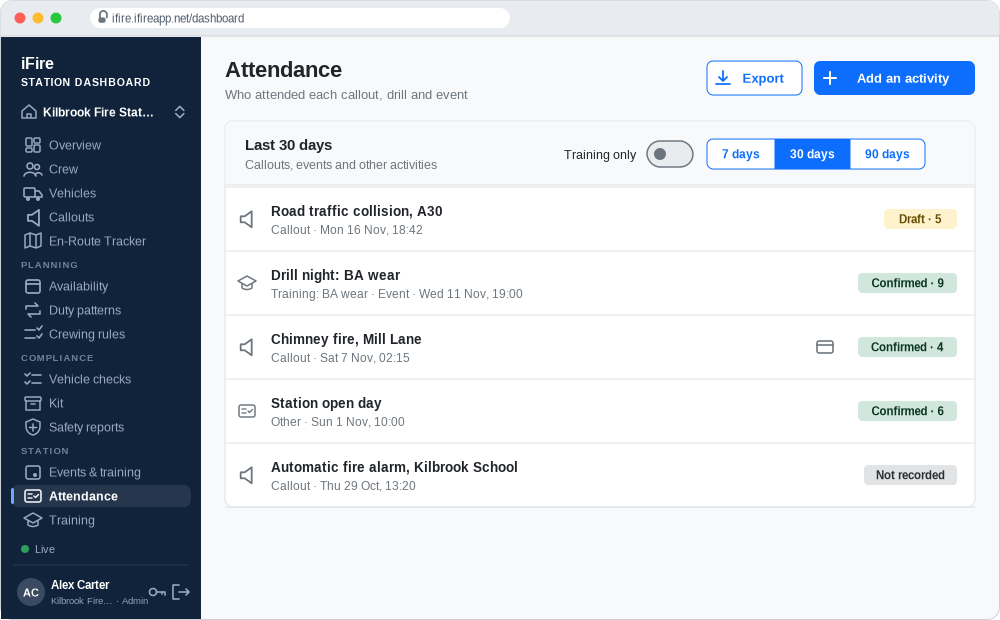
The list
- Every callout and event in the last 7, 30 or 90 days is listed, newest first, with anything you've added yourself.
- The badge shows where each record stands: Confirmed or Draft with the number who attended, or Not recorded.
- Switch on Training only to see just the records marked as training.
- A document icon on a callout means it has an incident report.
Record a callout or event
- Click it in the list. A record that hasn't been saved yet opens already filled in:
- for a callout, everyone who said they were on their way, from the page to the stand down (or 2 hours if it wasn't stood down);
- for an event, everyone who replied yes, for the event's times.
- Correct the list. Choose Add a person for anyone missing, and the cross to take someone off.
- Add a role for each person if you want, such as OIC or Driver, and click their times to change them.
- Choose Save draft to come back to it later, or Confirm when it's right.
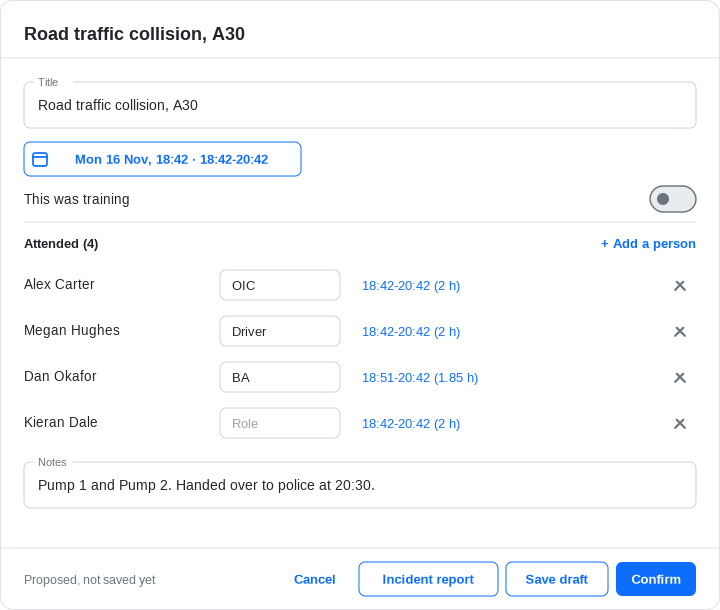
Nothing is saved until you choose Save draft or Confirm. Only confirmed records count towards training and the volunteer value report.
Record something else
For a drill, a fundraiser or anything that wasn't a callout or event, choose Add an activity. Give it a title, pick the date and times, add the people and save it.
Remove a record
Open it and choose Remove record. Who attended is forgotten. A callout or event stays in the list as Not recorded.
Export to a spreadsheet
Choose Export, then Export CSV, and pick the dates. The file opens in Excel or Google Sheets. Incident reports CSV in the same menu exports post-incident reports.