
If your station has set up checklists for its vehicles, you can do the checks on your phone. In iCrew this covers your boats and tractors; in iFire your appliances; in iRescue your vehicles.
See where checks stand
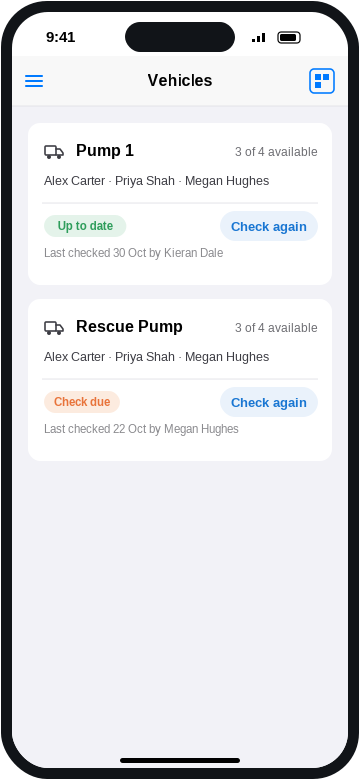
Open the side menu and tap Vehicles. Each vehicle with a checklist shows a label:
- Up to date: checked recently enough.
- Check due or Never checked: it needs doing.
- Check failed: the last check found a problem, listed under Failed.
- Off the run: someone has said it can't go out.
Under the label you'll see who did the last check and when, for example Last checked 30 Oct by Kieran Dale.
Do a check
- Tap Do a check (or Check again) on the vehicle. You can also scan the QR code on the vehicle: see Scanning vehicle and kit QR codes.
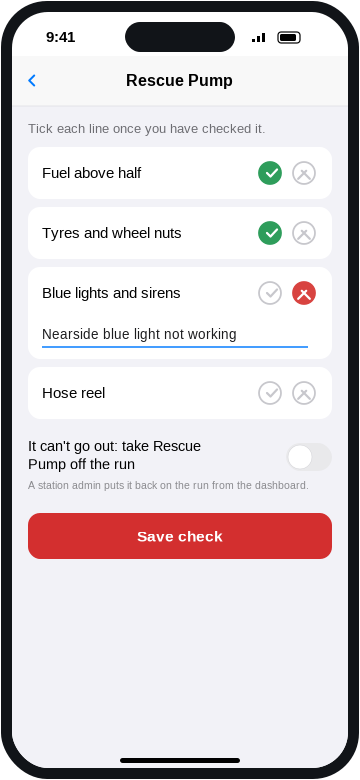
- For every line, tap the tick if it looks fine, or the cross if the check failed.
- For a crossed line, type what's wrong.
- Add anything else in Anything else to report? if you need to.
- Tap Save check. You need to answer every line first.
When something's wrong
If any line is crossed, you can switch on It can't go out: take … off the run. The vehicle then shows as off the run in the app's crewing bars and on the crew board, and the app says Check saved. Rescue Pump is off the run. Only a station admin can put it back on the run, from the Station Dashboard. See Vehicles and off the run.
No check button?
The vehicle doesn't have a checklist yet. Station admins set up checklists and how often they're due on the Station Dashboard. Observers can't do checks.