
Your station can stick QR codes on its vehicles and kit. Scan one with the app to start a vehicle check, or to see whether a piece of kit is in date.
Scan a code
- Open the side menu and tap Vehicles.
- Tap the scan button at the top right.
- Point the camera at the QR code. The app reads it by itself.
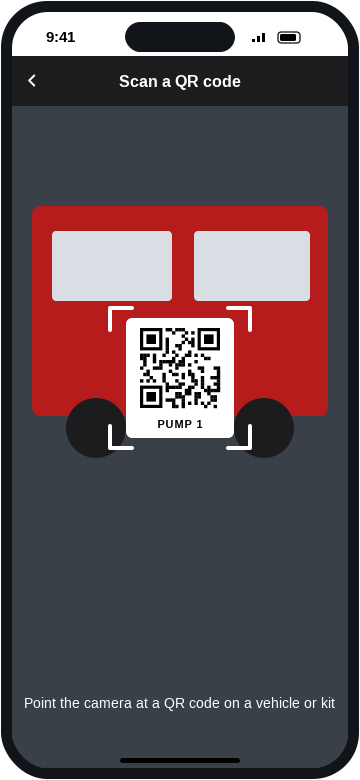
The first time, your phone asks to let the app use the camera. If you said no, the app says Allow camera access in Settings to scan codes: turn on camera access for the app in your phone's settings.
What happens next
- A vehicle's code opens its check straight away. See Doing a vehicle check. If the vehicle has no checklist yet, the app says No checklist for this vehicle yet.
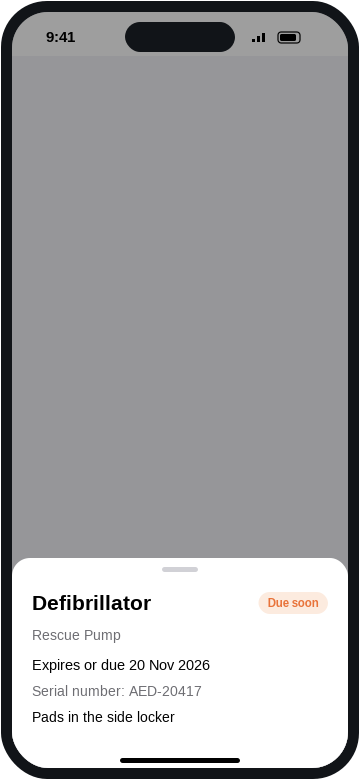
- A kit code shows the item: its name, which vehicle it's on, when it expires or is due, its serial number and any notes. The label says In date, Due soon, Expired or No date set.
If it doesn't work
- That isn't a station QR code: it's not one of your station's codes, for example a code from a shop or a poster.
- That code is for kit at another station: the kit belongs to a different station. If you belong to more than one, switch to that station first.
- No scan button? Your station isn't using vehicle checks or QR codes yet.
Station admins print the codes from the Station Dashboard. Invite QR codes are different: to join a station, see Joining your station with an invite code or link.