
Your station adds you to the app in one of two ways: an email invite, or a 6-digit invite code. This article covers both, plus invite links and QR codes. It works the same in iFire, iCrew and iRescue.
If you were invited by email
Sign in with the email address the invite went to, and you join the station automatically. If you signed in before the invite was sent, tap Check again.
If you were given an invite code
Anyone already on your station can make a code in the app. Ask your station admin or a crew mate for one.
- Install the app and sign in with your email address. See Getting started with the app.
- On the Get started screen, tap Enter invite code.
- Type the six numbers. The app joins as soon as the last one is in, or tap Join.
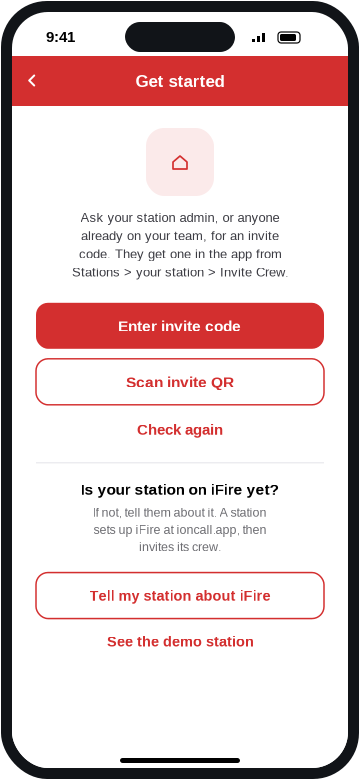
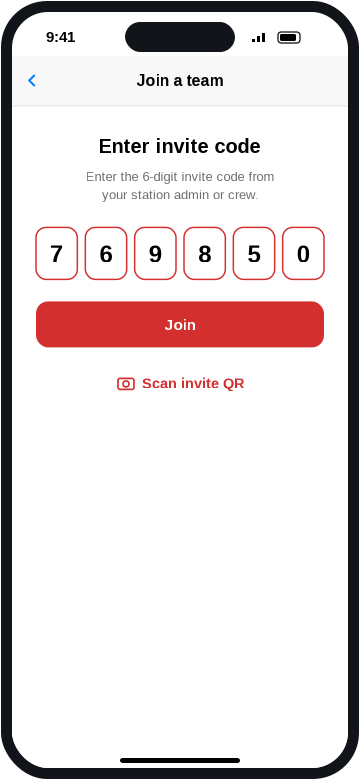
Codes are six numbers. If you've been sent one written as 769 850 or 769-850, type just the numbers.
Scan the invite QR
If you're standing next to the person inviting you, ask them to open Invite Crew on their phone. Tap Scan invite QR and point your camera at the QR code on their screen. You join straight away, with nothing to type.
Open an invite link
A shared invite ends with a link like https://ifire.ioncall.app/join/769850. iCrew links start with icrew and iRescue links with irescue.
- App installed: tap the link and the app opens with the code filled in.
- App not installed yet: the link opens a web page with the code, App Store and Google Play buttons, and Copy code. Install the app and sign in. Then open the link again, or tap Enter invite code and type the code.
If you tap the link before you've signed in, the app says Invite code 769850 saved. Sign in and you'll join your station straight away.
Joining a second station
Already on a station? Open the side menu, tap Stations, then Have an invite code?. See Belonging to more than one station.
Code not working? See My invite code doesn't work.