
This guide gets you from installing the app to seeing your station's crew list. It works the same in iFire, iCrew and iRescue.
Before you start
You join your station with an invite code: six digits, such as 769850. Anyone already on your station can get one in the app, from Stations › your station › Invite Crew. They can share it with you as a code, an invite link or a QR code to scan. Codes don't last for ever, so if yours doesn't work, ask for a fresh one. See Joining your station with an invite code or link.
Some stations invite crew by email from the Station Dashboard instead. If you've had an invite email, sign in with that email address and you're added to the station automatically.
1. Install the app
Install the app your station uses from the App Store or Google Play: iFire for fire stations, iCrew for lifeboat crews or iRescue for coastguard and rescue teams.
Been sent an invite link, such as https://ifire.ioncall.app/join/769850? Open it on your phone. If the app is installed, the link opens it and keeps your code. If not, the page has links to the App Store and Google Play. While you sign in, the app shows Invite code 769850 saved, and you join your station as soon as you've verified your email.
2. Enter your email
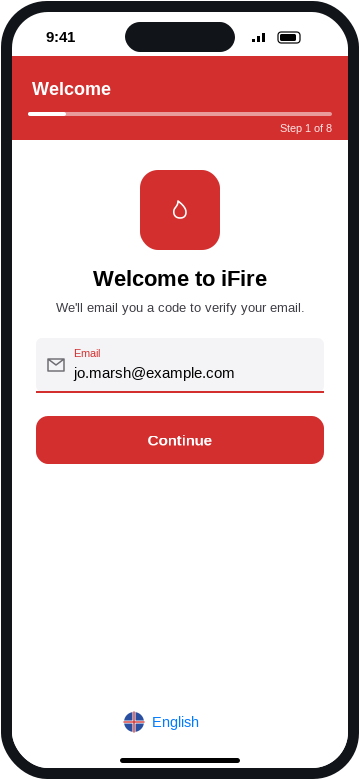
Open the app, enter your email address and tap Continue. To use the app in another language, tap the language at the bottom of the screen first.
3. Verify your email
We email you a short code. Type it in and tap Verify.
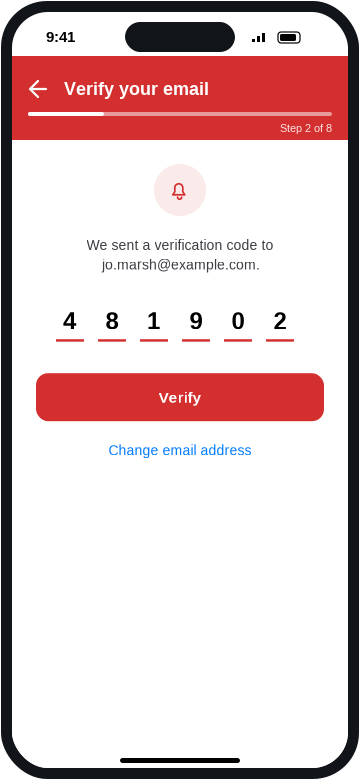
No email? Check your junk folder. If the app says it couldn't deliver to that address, check for typos and tap Change email address.
4. Join your station
If an email invite or an invite link was waiting, you join the station straight away and skip this step. Otherwise the app shows Get started:
- Enter invite code: type the six digits and tap Join.
- Scan invite QR: point your camera at the QR code on a crewmate's Invite Crew screen.
- Check again: if your admin has just sent you an email invite, tap this to pick it up.
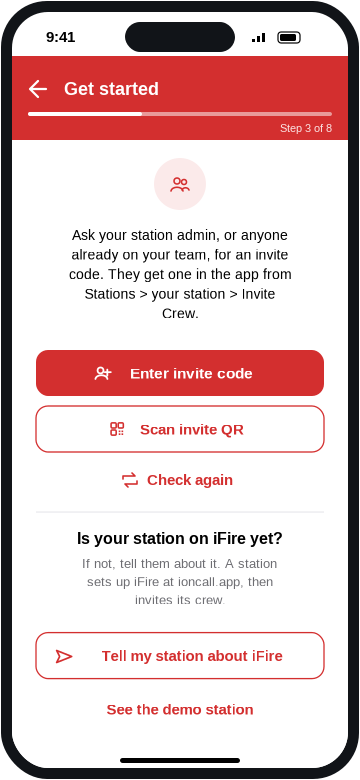
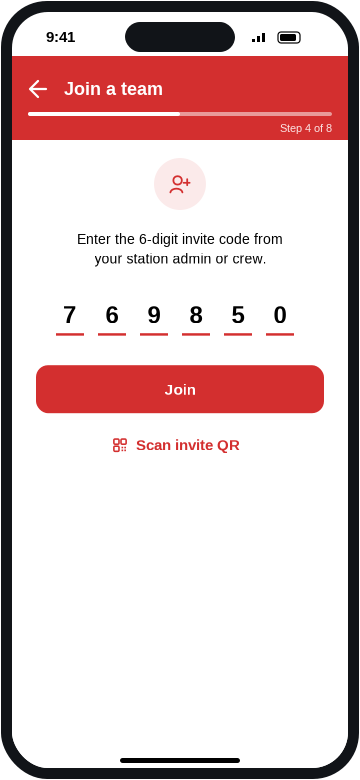
If the app says the code didn't work, check the digits and try again, or ask for a new code. A code from another app (for example an iCrew code typed into iFire) won't work; the app tells you which app it's for. More help: My invite code doesn't work.
5. Finish your profile
- Add your first and last name, choose your rank and tap Save profile.
- Under Stay informed, choose whether you'd like occasional updates and tips by email.
- If your phone supports it, switch on Quick unlock so the app asks for Face ID or your fingerprint when it opens.
On the All done screen, tap Get started and you'll see your station's crew. Next, read Setting your status and Making sure callout alerts reach you.
Is your station on the app yet?
If nobody at your station uses the app yet, the bottom of the Get started screen helps:
- Tell my station about iFire opens your phone's share sheet with a short message to send your station.
- See the demo station opens the demo, a made-up station you can look round.
See If your station isn't on the app yet.
Some apps also show Create a new station. Tap it, give your team a name and timezone, then tap Create team. You become the station's admin, the station gets a free trial, and you can invite your crew from Stations › your station › Invite Crew. If you don't see the button, set the station up on the Station Dashboard on a computer instead: see Setting up a new station.