
Your status tells the rest of the station whether you can respond to a callout. It's the most important thing in the app to keep up to date.
See who's available
The Team screen shows your station's crew with a coloured status badge for each person. The bars at the top count how many people are available for each role, for example Officers and Drivers.
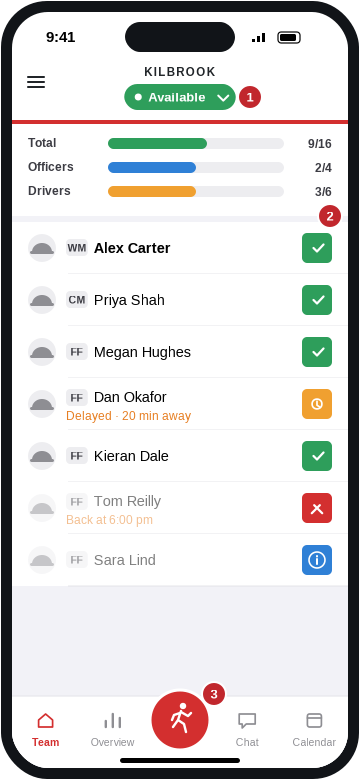
The round red button at the bottom (3) is for responding to a callout; see Responding to a callout.
- Green tick: available.
- Amber hourglass: available but delayed.
- Red cross: unavailable.
- Blue: on a course or training. Purple: on holiday or leave.
Use the filter at the bottom of the list to show All Crew, Available or Unavailable. Tap a person to see their profile.
Change your status
- Tap your status at the top of the screen.
- Pick your new status from the list.
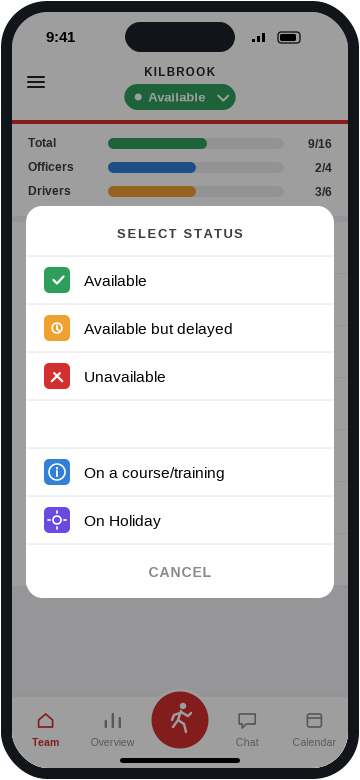
Your crew see the change straight away, and so does the station's crew board.
On iPhone you can also ask Siri, for example "Hey Siri, iFire I'm available" or "iFire I'm unavailable". See Responding hands-free with Siri or your car.
Book on for a set time
When you go available, the app asks how long for. Pick a time, such as 15:00, or a length of time, such as 2 hours, and you're booked off automatically when it runs out. Your crew see Available until 3:00 pm next to your name.
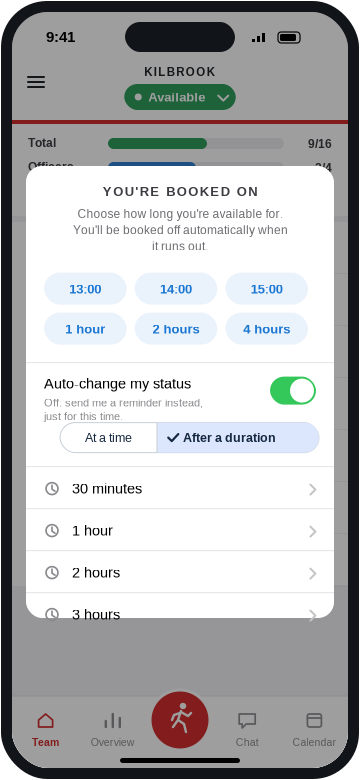
Switch off Auto-change my status if you'd rather get a reminder and change it yourself. When you go unavailable, the app can do the same the other way round and book you back on at a time you choose.
Don't want to be asked? Go to Settings › Status Changes and switch off Ask how long I'm available for. Your station may have it on for everyone; you can still switch it off for yourself.
Plan ahead instead
If you know your availability in advance, plan it on the Calendar or Overview tab and your status changes by itself when the time comes. See Planning your availability.