
When a callout comes in, tell your station whether you're coming. Your answer shows on everyone's Team screen, on the station dashboard and on the crew-room board, so the officer in charge knows who to wait for.
Answer from the notification
You don't have to open the app. Callout notifications have three buttons:
- I'm responding
- Responding but delayed
- I'm not responding
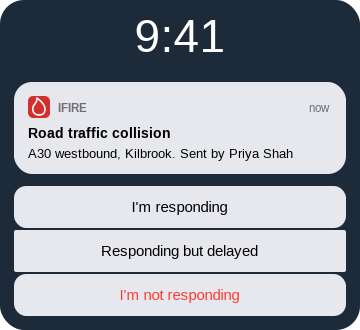
On iPhone, press and hold the notification (or swipe it left and tap View) to see the buttons. On Android, a second notification, Callout: tap to respond, carries the buttons for an hour after the page.
A notification then confirms it worked, for example You're marked as responding. If it says it couldn't, open the app and set it there.
Answer in the app
- Tap the round Responding button at the bottom of the screen.
- Choose how you're responding, for example En-route to station, En-route but delayed or Not Attending.
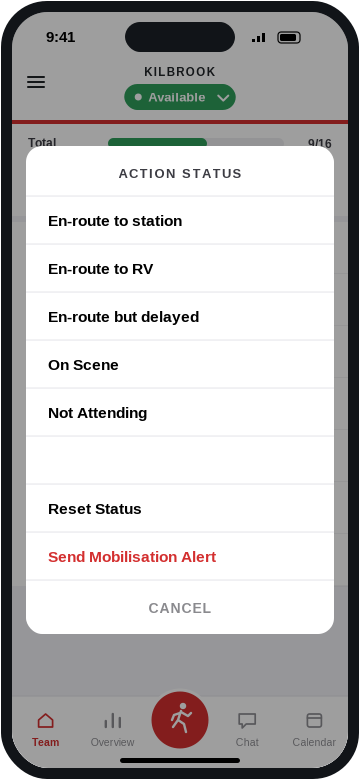
When you get there, choose On Scene. Reset Status clears your responding status once the job is over. Responding statuses also clear by themselves after a set time; you can change that time in Settings › Status Changes. Some stations also clear everyone's responding status when the callout is stood down; see Standing down a callout from the app.
If you don't answer
Your station can choose to re-alert crew who haven't answered. If it has, and you're booked on but haven't said whether you're coming, the callout alarm sounds again a few minutes later, and once more after that. Answering, in the app or from the notification, stops it, and so does a stand down. Crew who are booked off are never re-alerted. See Re-alerts and reminders during a callout.
While you're responding
- A bar at the top of the Team screen counts who's responding, who's delayed and who's on scene. Tap Map to see responders on a map.
- Your phone shares its location with your station only while you're responding, so the officer can see you on the en-route map. The location is deleted when the callout ends.
- People who are responding flash in the crew list so they're easy to spot.
Delayed? Say when you'll be there
When you say you're on your way, the app asks When will you be there? and offers three choices:
- If you're responding: 1–5 min, 5–10 min or 10–15 min.
- If you're responding but delayed: 15–20 min, 20–30 min or 30+ min.
Each choice shows the time you'd be there by. Tap one, then tap Send. Your crew see an arrival time and a countdown next to your name. Not sure? Tap Not sure - skip.
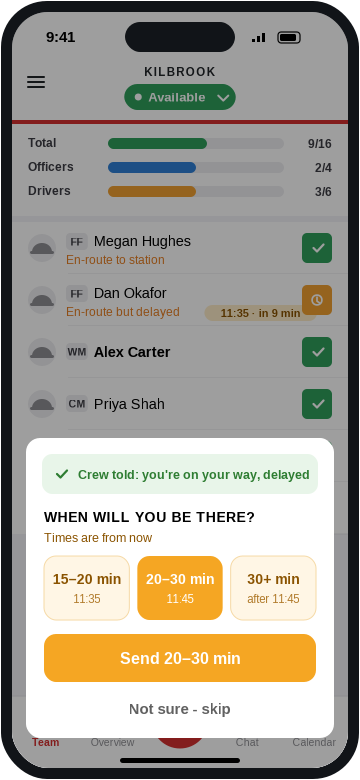
If you'd already said how far away you were (see Available but delayed), the matching choice is picked for you.
Running later than you thought? A RUNNING LATER? strip at the top of the Team screen lets you send a new time, from 5 to 60 minutes.