
If your invite code doesn't work, the app tells you why. Find the message below.
Invite codes are 6 numbers
Invite codes are 6 numbers. Type just the numbers, with no dash or spaces, for example 769850.
Some codes are written with a space or a dash in the middle. Type only the six numbers.
That invite code didn't work
That invite code didn't work. Check you typed it correctly, or ask for a new one.
- Check each number. It's easy to swap two.
- Codes run out. If yours is more than a day old, ask for a new one. Anyone on the station can make one: see Inviting crew from the app.
The code is for a different app
That invite code is for a station on the iCrew app, not this one.
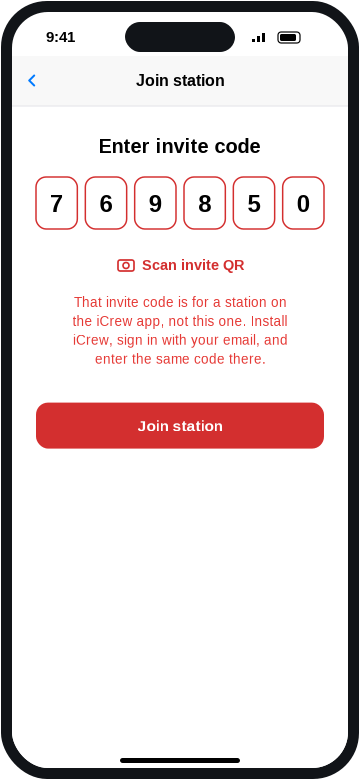
iFire, iCrew and iRescue are separate apps, and a code only works in the app its station uses. Install the app the message names, sign in with your email, and enter the same code there.
Too many attempts
Too many attempts. Please wait 15 minutes and try again.
After several wrong codes, the app stops you trying for a while. Wait 15 minutes, check the code with whoever sent it, then try again.
That QR code isn't a station invite
You've scanned a different QR code, perhaps a vehicle or kit code. Ask for the QR on the Invite Crew screen, or type the code.
Waiting for an email invite?
If the app says No invite yet when you tap Check again, check with your station admin which email address they invited. It must be exactly the one you signed in with.