
The Crew page lists everyone at your station with their rank and current status. Any member can see it. Line managers can edit the profiles of the crew who chose them, and station admins manage who is on the station and who is admin.
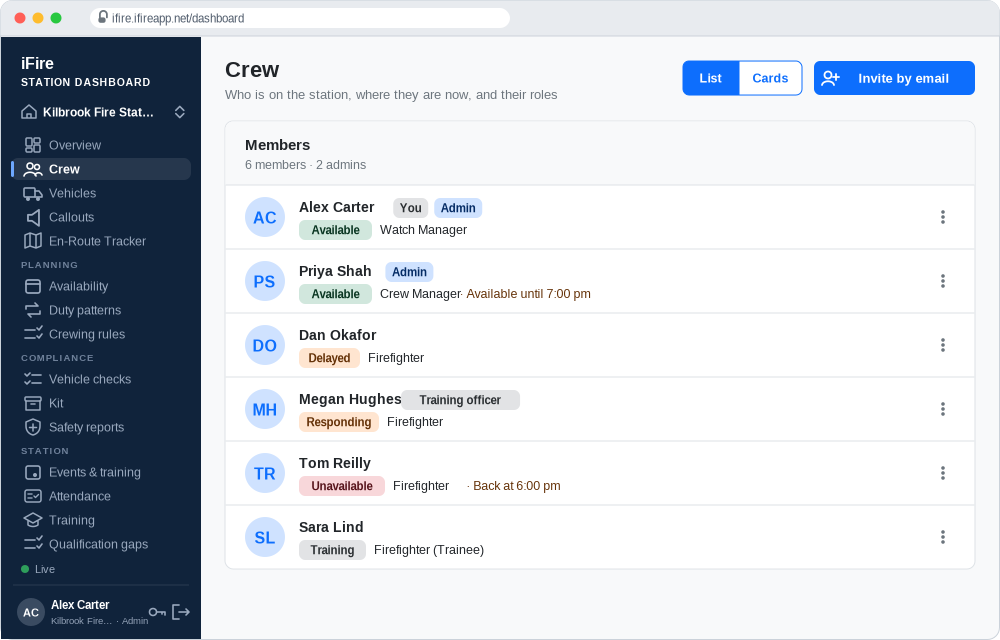
Reading the list
- Admins are at the top, marked Admin. Your own row is marked You, and training officers are marked Training officer.
- Each person's status is a coloured badge: green for Available, orange for Delayed or Responding, red for Unavailable, blue for Leave and grey for Training.
- Orange notes say when that's going to change, for example Available until 7:00 pm or Back at 6:00 pm.
- Switch to Cards for a picture view like the old station TV page, with filters for All Crew, Available, Unavailable and Responding. The dashboard remembers which view you picked.
Who can edit a profile
- You can edit your own details on My profile, which opens when you choose your name at the bottom of the sidebar.
- Station admins can edit any member's profile.
- A line manager can edit the profiles of the crew who chose them as their line manager.
Hours and availability history are kept apart: only the member and their line manager can see them, not admins. See Line managers and who can see your plan for how a member chooses their line manager.
Edit a crew member's profile (admins and line managers)
- Choose the ⋮ menu at the end of their row, then Edit profile. Admins see this on every row; line managers see it for the crew who chose them.
- Change their name, rank, crew number, callsign, qualifications or launch authority (Active DLA).
- Choose Save.
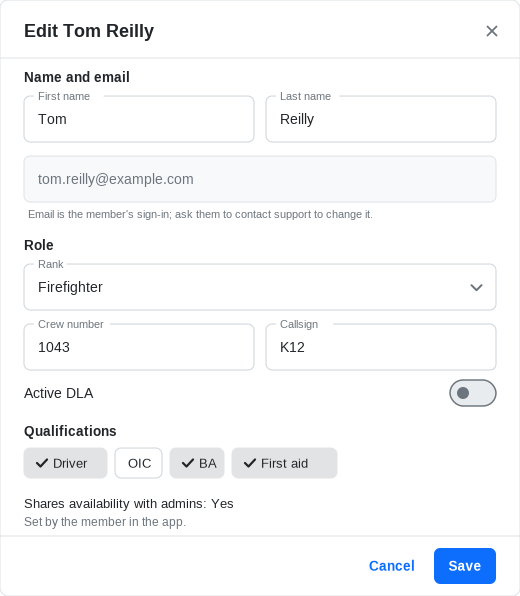
A crew member's email address is how they sign in, so it can't be changed here. Ask them to contact support. Whether they share their availability is their own choice, made in the app.
Qualifications matter: crewing rules, warnings and the crew board all count them. If a qualification you need isn't offered, check role names and ladders on the Crewing rules page.
Make someone an admin (admins)
Choose ⋮ then Make admin. Admins can send callouts, invite and remove crew, and change station settings and billing. To take it away, choose Remove admin. A station always keeps at least one admin.
The same menu has Make training officer and Make observer for other roles at the station.
Remove someone from the station (admins)
Choose ⋮ then Remove from station. They lose access straight away. Their own account isn't deleted, so they can still join another station.
If crew have voted in the app to remove a member, admins see an amber badge such as 2 removal votes on that person's row.