
On iOnCall a training session is an attendance record marked as training. You record it on the Attendance page, and the Training page adds it all up: who has trained, how often, and on what.
Station admins and training officers can record and see training.
Record a training session
- On Attendance, open the drill or event, or choose Add an activity.
- Switch on This was training.
- Type the Topic, or pick one from Topics used before.
- If the session renews a qualification, choose it in Renews. Otherwise leave it as No qualification.
- Check who attended, then choose Confirm.
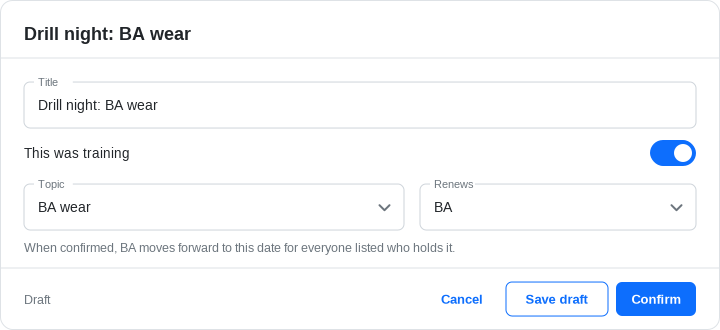
When you confirm a session that renews a qualification, that qualification's date moves forward to the session's day for everyone listed who holds it. It never moves a date backwards. Only confirmed records count; a draft doesn't.
The Training page
Pick 3 months, 12 months or 24 months at the top.
- Crew lists each member's sessions, hours and the date they last trained. Choose Longest since training to put anyone who has never trained, or not for a long time, at the top.
- Click a name to see their sessions and their certificates.
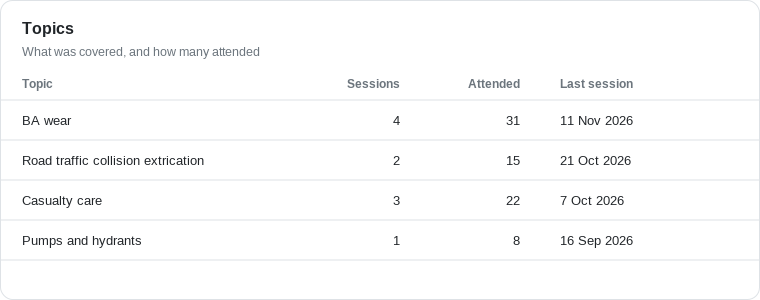
- Topics shows what was covered, how many sessions there were and how many attended.
Crew see their own training in the app, under My training in the side menu. See My training and qualification reminders.