
To sign in, the app emails you a short code. If it doesn't arrive, or the app won't take it, work through this list.
The email hasn't arrived
- Wait a minute, then check your junk or spam folder.
- Check the email address on the screen. If it's wrong, tap the back arrow at the top, correct it and tap Continue. That sends a new code.
- Work emails sometimes block messages from outside. Try a personal address, and ask your station admin to invite that address instead.
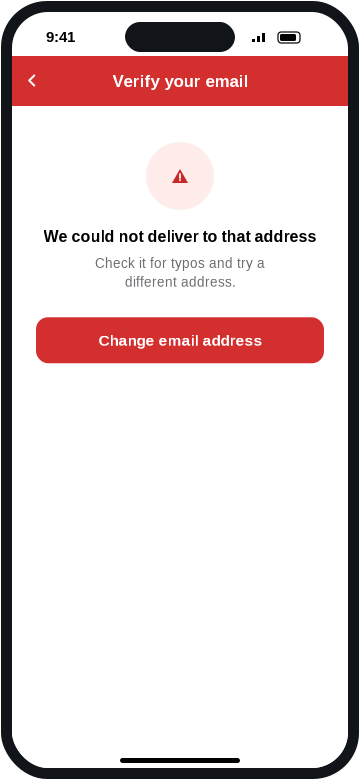
If the address can't take email at all, the app says We could not deliver to that address. Tap Change email address and try another one.
The app won't take the code
- Invalid verification code, Please check and try again. Check you've typed the latest code. Each new request sends a new code.
- Too many wrong codes. Wait 15 minutes, then request a new code. Wait, then go back and tap Continue to get a fresh code.
- Too many verification attempts. Please wait a few minutes and try again. Too many codes have been asked for in a short time. Wait a little before trying again.
- We couldn't send your code just now. Please try again in a minute. Something went wrong our end. Try again shortly.
Why am I asked to verify again?
You might see Your sign-in on this phone has expired or This phone was signed out of your account. Sign in with the same email address and your stations, plan and settings come back. While you're signed out, this phone gets no callout alerts, so sign back in straight away. See Signing out, new phones and deleting your account.
Signed in but not on your station? See My invite code doesn't work.