
My profile shows your own details on the Station Dashboard, all on one page. You can change your name and mobile number, choose your line manager and look after how you sign in.
Open your profile
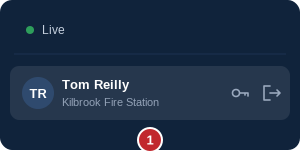
Choose your name at the foot of the sidebar. The key and sign-out buttons next to it still change your password and sign you out.
What's on the page
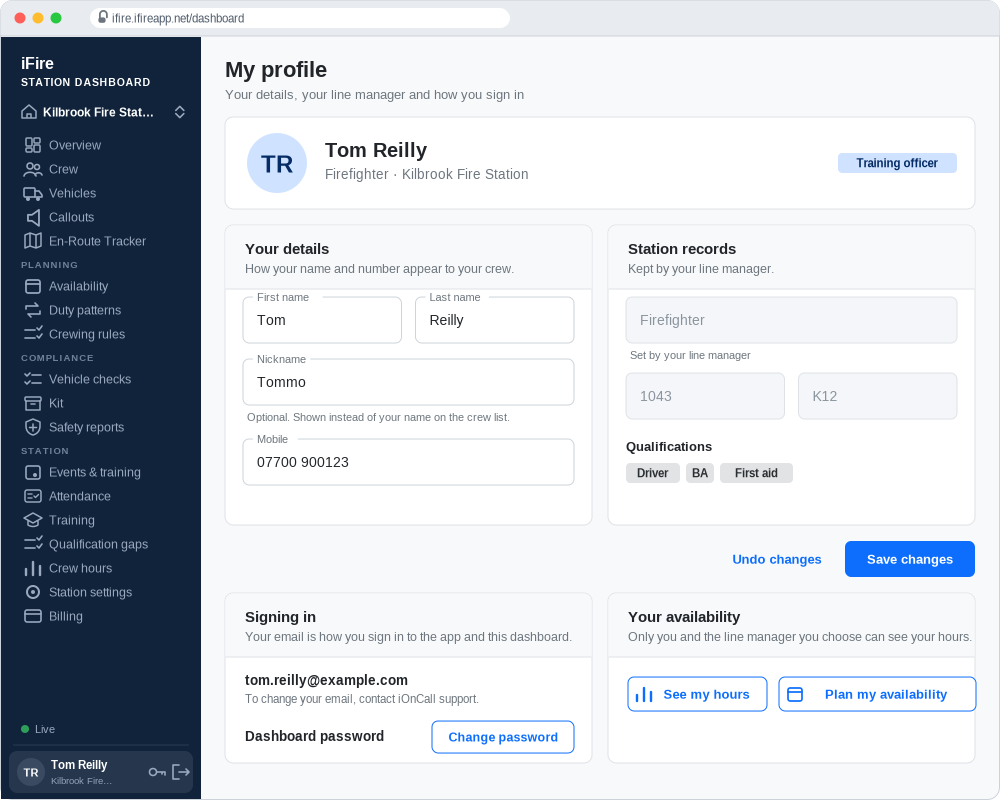
- At the top: your name, rank and station, and any role you hold, such as Station admin, Training officer, Duty launch authority or Observer.
- Your details: first name, last name, a Nickname (shown instead of your name on the crew list) and your Mobile number.
- Station records: your rank, crew number, callsign and qualifications. Qualifications are shown here but not changed here.
- My line manager, and Keep my plan off the dashboard.
- Signing in: your email address, Change password and Sign out.
- Your availability: See my hours and Plan my availability.
Change your details
- Change the fields you want.
- Choose Save changes. Undo changes puts everything back as it was.
If a field is greyed out with Set by your line manager under it, your station keeps that record for you. Ask your line manager to change it.
Your email address
Your email address is how you sign in to the app and the dashboard, so you can't change it here. Contact iOnCall support if it needs to change.
Who else can change your profile
Your station's admins and the line manager you chose. Your hours and availability history are different: only you and your line manager can see them, not admins. See Roles at your station.
Your profile in the app is covered in Your profile and photo.